
OBS Quick Start

Get chat into OBS with the fewest moving parts.

1. Pick One Session ID

Make up one short session ID and use it everywhere. It is how your chat source, dock, and OBS overlay find each other.

YOUR_SESSION_ID

2. Start A Chat Source

  1. Install or open Social Stream Ninja.
  2. Open the chat source for your platform and leave it open.
  3. Send or wait for one chat message so you know the source is working.

Not sure which source mode to use? See the Platform Setup Picker.

3. Open The Dock

The dock is your test screen. Open it before changing OBS settings.

https://socialstream.ninja/dock.html?session=YOUR_SESSION_ID

Social Stream Ninja dock showing three received chat messages
If messages appear here, Social Stream Ninja is receiving chat. Use the same session ID in OBS.

4. Add An OBS Browser Source

In OBS, add a Browser Source and paste the overlay URL.

https://socialstream.ninja/featured.html?session=YOUR_SESSION_ID
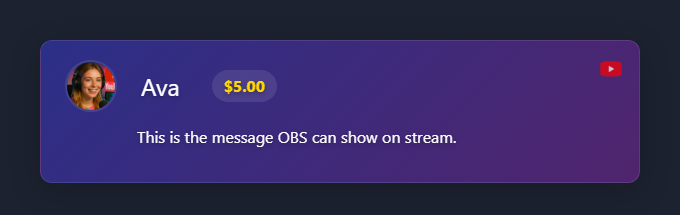
Featured message overlay preview with a sample chat message and donation badge
A browser source can show a featured message like this after chat is reaching the dock.

For regular chat overlay layouts, use a template from the Templates Gallery.

5. If OBS Is Blank

Check one thing at a time, in this order.

  • Confirm the dock receives messages first. If the dock is empty, OBS is not the problem yet.
  • Confirm the OBS URL has the same session.
  • Refresh the OBS browser source after changing URL options.
  • Check that the source chat page or app source window is still running.

More details: Troubleshooting.