
TikTok Quick Start

Use this first when you just need TikTok Live chat working.

1. Search For TikTok

Open the Supported Sites page and search for TikTok. This confirms the basic setup rule before you start changing OBS.
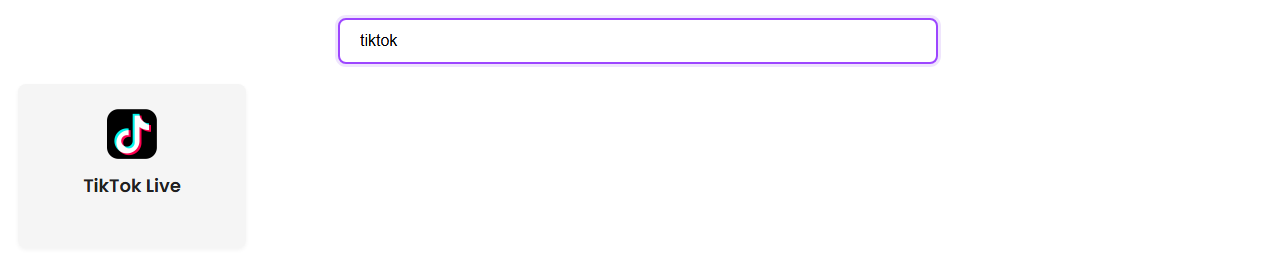
Supported Sites page filtered to TikTok Live
If TikTok Live appears here, click it to see the current setup note.

2. Open The TikTok Live Page

For the browser extension, open the creator's live page and keep the chat visible.

https://www.tiktok.com/@CHANNEL/live
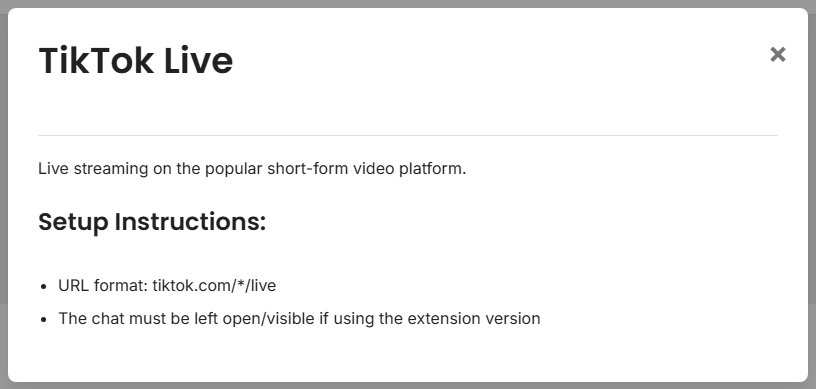
TikTok Live setup popup showing the live URL format and visible chat requirement
The important part is simple: use the live page and leave chat open.

If browser tabs keep pausing or hiding chat, try the desktop app path instead.

3. Use One Session ID

Pick one short session ID. Use that exact same ID in the TikTok source, the dock, and OBS.

YOUR_SESSION_ID

4. Check The Dock Before OBS

Open the dock with your session ID. Send or wait for one TikTok chat message.

https://socialstream.ninja/dock.html?session=YOUR_SESSION_ID

Social Stream Ninja dock showing received chat messages
If the dock receives messages, Social Stream Ninja is working. OBS is the next step.

5. Add The Overlay To OBS

Add a Browser Source in OBS and use the same session ID.

https://socialstream.ninja/featured.html?session=YOUR_SESSION_ID
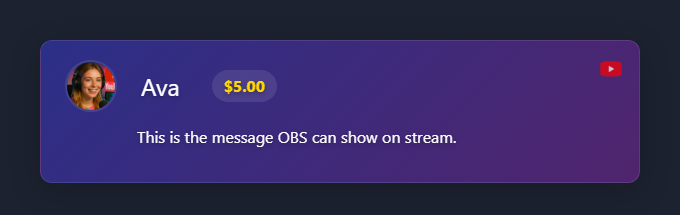
Featured overlay preview with a sample chat message
Use a template if you want a full chat layout instead of a single featured message.

Template setup: Overlay Template Quick Start.

If TikTok Does Not Show Up

  • Make sure the TikTok live page is actually live.
  • Keep the chat visible when using the browser extension.
  • Confirm the dock and OBS use the same session ID.
  • Refresh the dock after changing the session ID.
  • Try the desktop app if the browser tab is being throttled.

More detail: Full TikTok Guide.