Set up Stream Deck
Connect your Stream Deck to Social Stream Ninja in a couple of minutes.
English
Using the Chrome extension? Copy your unique session ID from Settings, then paste it into the plugin.
App details
Get the plugin
Download the .streamDeckPlugin file from the latest release and open it to install in the Stream Deck app.
Download pluginWatch the 2-minute overview
What the plugin can do, and how to set it up step by step.
Connect your session once
Copy the ID
Use Copy ID above, or copy it from Settings in the Chrome extension.
Add Setup
In the Stream Deck app, drag the Social Stream Ninja Setup action onto a key.
Paste and test
Paste the ID into Setup and choose Test Connection. The key shows Online when it works.
Keep SSApp or the extension running. Once Online, add Preset Command keys; they all share this connection.
The two places you will use

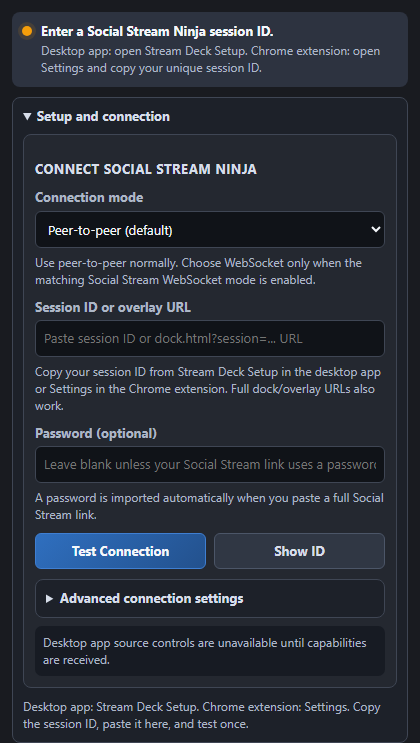
Controls that fit a live workflow
Commands adapt to what your SSApp or extension supports. Source controls need SSApp; dials need Stream Deck +.
Keep your session ID and password private. Hide them before sharing screenshots.