Animation and sound alerts
Setting up your stream? Follow Set up alerts, chat commands and reminders for custom sounds, command replies, and automatic reminders.
Set up your first alert
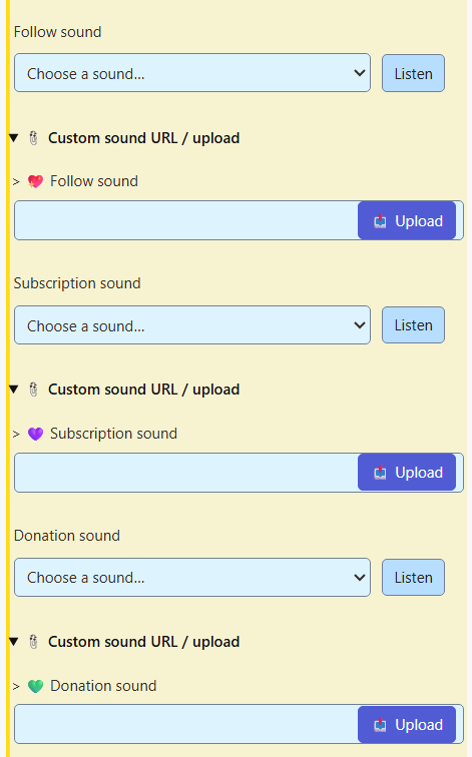
- Open Multi-Alerts → Event animations & sound effects.
- Enable an alert, then choose the event. The $100 donation preset fills both amount limits and supplies a synthetic Thank you sound if none is selected.
- Add an optional direct GIF, image, or video URL, or upload media. A GIPHY page link is not a direct media URL. GIF images have no audio; choose a separate sound.
- Choose a sound and use Listen to hear it locally. Custom URL and upload options are below the picker.
- Use Test alert, then add your Multi-Alerts link as an OBS browser source.
Amount limits and priority
Donations and bits use estimated USD values from the currency helper. For exactly $100, set both limits to 100. For $100 or more, leave the maximum blank. Blank limits allow any amount; other event types should have no amount limits.
The first matching alert wins. Put specific rules before broad ones. Platform and category filters still apply.
Preview and sound
Test alert opens and focuses the local preview. It does not send an event to your live channels. The preview uses your current overlay settings, filters, media, and timing. Sound volume is under Sound & Timing.
Clear sound removes the custom sound override; default alert audio still applies. Disable Play alert sound to mute overlay audio. Enable alert pauses a rule while preserving its settings. Reset alert clears that rule alone.
Voiced phrases are labelled synthetic recordings. For names or changing text, use the Event Flow editor's Speak Text action.
Event Flow and OBS effects
Use Event Flow templates for sequences and OBS effects. Those media and sound actions play in the Flow Actions overlay. Use one overlay for each event's sound to avoid hearing it twice. OBS templates need a source and filter selected before use.