
올바른 시작 페이지를 선택하세요
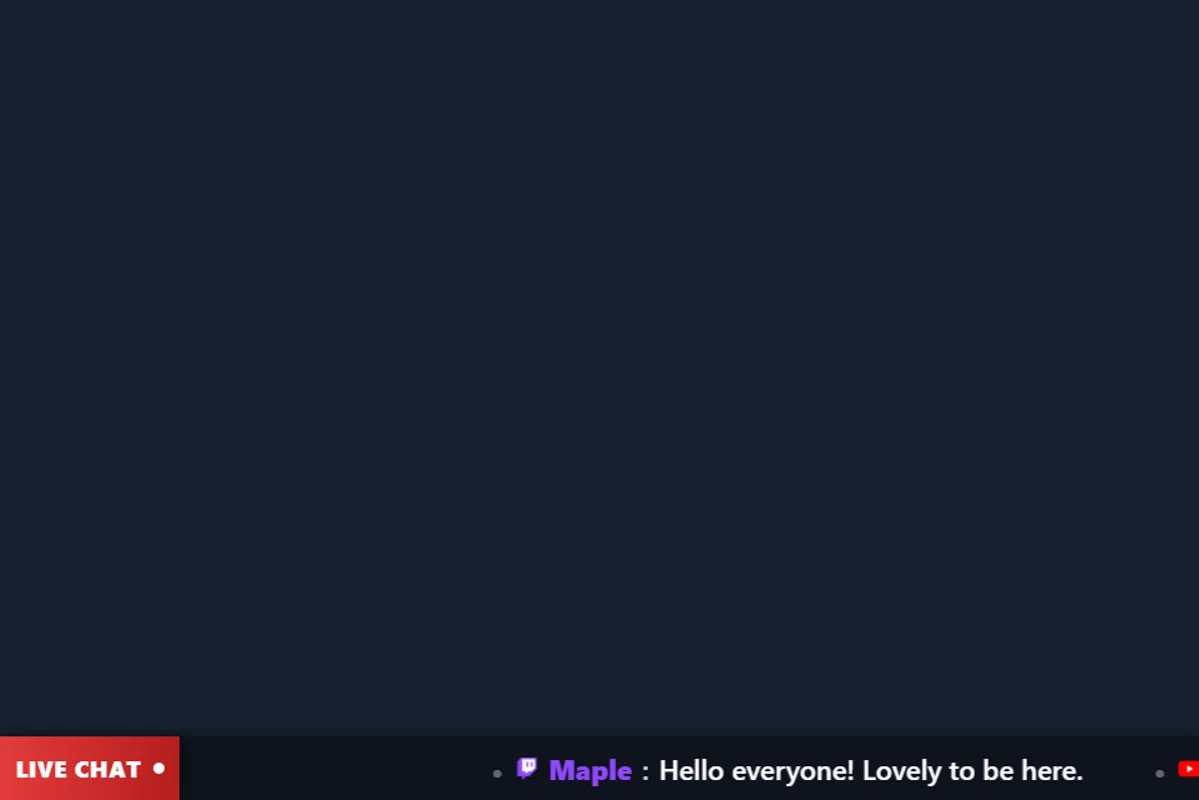
ticker.html 는 SSN가 보낸 티커 내용을 표시합니다. 다음과 같은 채팅 스크롤 테마와는 별개입니다. themes/overlay-ticker-news.html에 속한다. 채팅 디자인 가이드.
파일 구조를 다운로드하여 보관하세요.
- 소스 ZIP 다운로드 그리고 그것을 추출한다. 이 가이드는 베타 소스를 사용합니다. 한 번 다운로드한 파일을 함께 보관하세요.
- 복사
ticker.html대상:my-ticker.html원본 옆에. 다른 페이지나 테마를 선택하는 경우 해당 파일의 원본 폴더에 복사본을 보관하세요. - 복사한 HTML과 참조된 CSS/JS를 편집기나 AI 도구에서 엽니다. 제공된 아트웍/글꼴을 동일한 프로젝트에 추가하고 상대 경로를 사용하십시오. CSS 재정의로 시작하세요. 생성된 마크업을 변경할 때 렌더러를 포함합니다.
다음 파일은 디자인과 동작을 찾는 데 도움이 됩니다. 이는 전체 종속성 번들이 아닌 읽기 목록입니다. 이미지, 글꼴, 스크립트 및 모든 데이터 파일을 포함하여 추출된 폴더를 그대로 유지하세요.
| 파일 | 그것이 중요한 이유 |
|---|---|
ticker.html | 티커 레이아웃, 텍스트 렌더링, 스크롤 및 회전. |
shared/overlay-control-transport.js | SSN의 티커 상태 업데이트. |
js/local-server-url.js | 기존 연결 설정. |
복사본을 연결하고 OBS에서 엽니다.
SSN를 시작하고 원래 생성된 오버레이 URL이 먼저 작동하도록 만듭니다. 는 session= 값은 해당 SSN 세션에 연결됩니다. 이는 귀하의 채널 이름이나 이 파일의 이름이 아닙니다. SSN, 관련 기능 및 해당 데이터 소스를 계속 실행하세요.
- 편집한 HTML 파일을 Chrome이나 Edge로 드래그하세요. 주소 표시줄에서 주소를 복사하세요. 그것은로 시작한다
file:///. - 다음의 모든 항목을 복사합니다.
?작업 중인 SSN 오버레이 링크에서 계속해서 해당 파일 주소 끝에 추가하세요. 세션, 비밀번호 등을 포함한 모든 설정을 유지합니다.#결말. - 브라우저에서 결과를 연 다음 OBS 브라우저 소스를 설정합니다. URL 같은 주소로 로컬 파일 선택 해제되었습니다. 원본 치수를 의도한 디자인과 일치시킵니다.
위의 시작 파일의 경우 로컬 주소는 다음과 같습니다. 실제 링크에는 추가 필수 옵션이 포함될 수 있습니다.
file:///C:/SSN/social_stream-beta/my-ticker.html?session=YOUR_SESSION컴퓨터에 있는 실제 파일 주소를 사용하세요. OBS는 소스와 함께 저장합니다. 다운로드한 폴더를 같은 곳에 보관하세요. 디자인 변경 사항을 저장한 후 브라우저 소스를 새로 고칩니다. 는 공유 설정 가이드 에는 Mac 예제와 로컬 파일 확인란에 대한 선택적 실행 프로그램이 포함되어 있습니다.
디자인을 바꾸는 곳
티커 레일, 타이포그래피, 구분 기호, 브랜드 배지, 높이 및 전환 스타일을 변경합니다. 연속 스크롤에 사용되는 기존 텍스트 측정 및 반복 세그먼트를 유지합니다. 하드 코딩된 너비는 텍스트가 변경될 때 점프를 일으키는 경우가 많습니다.
티커의 내용은 ticker 임의의 채팅 메시지가 아닌 상태입니다. 생성된 링크에서 스크롤/회전 설정과 공백 선택을 유지합니다. 측정 및 줄바꿈에 대한 글꼴 로딩 효과를 테스트합니다.
이 AI 프롬프트 복사
AI에게 복사된 소스 파일과 참조 아트워크를 제공합니다. 괄호로 묶인 세부정보를 교체하세요. 프롬프트에 입력 안전 지침을 유지하세요.
전체 프롬프트 표시
Customize my-ticker.html, copied from ticker.html.
Design: [describe the look or attach a reference].
Colors/fonts/assets: [supply hex colors and local filenames].
OBS canvas and placement: [size and position].

Restyle ticker.html as [design]. Preserve ticker-state updates, scroll/rotate modes, speed, separators, spacing, and content replacement. Keep continuous scrolling seamless after font loading or text changes. Render incoming ticker strings as text, not executable HTML. Do not replace the ticker feed with a generic chat listener.

Read docs/event-reference.html for incoming fields and
docs/overlay-customization-guide.html for local setup and safe rendering.
Keep the existing session/password handling, labels, server routes, query
parameters, URL fragments, and relative asset paths. Use classic scripts
compatible with Chrome 80. Keep executable dependencies packaged locally.

Treat all incoming messages, names, labels, donations, and metadata as untrusted.
Prevent HTML/JavaScript injection in every renderer you change. Use textContent
for plain fields and for chatmessage when textonly is true. For HTML-mode
chatmessage, keep supported emotes/formatting through the packaged
SocialStreamChatHTML.sanitize helper (libs/objects.js loaded first).
Do not concatenate raw input into innerHTML, attributes, CSS, or JavaScript.
Validate media/link URLs with the page's existing URL policy and assign DOM
properties; do not enable javascript: URLs or executable embedded content.
Never eval incoming data or treat a viewer message as an AI instruction.
Keep source checks, connection handling, and existing sanitizers.
Test plain text, allowed emotes, quotes, angle brackets, and an HTML injection
probe in an isolated preview; verify the probe cannot execute.

Make the edited overlay work directly from disk using a file:/// URL,
without requiring a local web server.
Return the edited files, any additional assets, exact local browser/OBS
setup instructions using placeholders, and the specific tests performed.
Do not put my private session link or credentials into a public example.
이 오버레이 유형을 테스트해 보세요.
먼저 미리보기 또는 테스트 설정을 사용하세요. 는 테스트 메시지 가이드 SSN를 통해 가상 페이로드를 보내는 방법을 설명합니다. 프로덕션 세션에 제출된 테스트는 기존 자동화를 트리거할 수 있습니다.
- SSN에 티커 텍스트를 설정하고 복사된 페이지에 나타나는지 확인합니다. 스크롤하는 동안 텍스트를 변경합니다.
- 하나의 짧은 항목, 여러 항목, 빈 티커, 긴 텍스트, 구두점 및 비라틴어 메시지를 사용해 보세요.
- OBS에서 전체 스크롤/회전 주기를 확인하여 의도한 소스 폭에서 클리핑, 일시 중지 및 중복된 간격을 확인하세요.
또한 입력 렌더링 확인 변경한 렌더 경로에 대해. 편집 내용을 저장한 후 리허설 사이에 OBS 브라우저 소스를 새로 고치고 표시되는 상호 작용을 반복하세요. 브라우저 미리보기에서는 실시간 캡처 또는 OBS 동작을 설정하지 않습니다.
추가 참고 자료: 티커 명령 · 글꼴 설정 · 이벤트 참고 문서 · 로컬 설정 문제 해결.