
Dois-je modifier le lien OBS ou le fichier HTML ?
Le fichier de superposition est poll.html. Il contient la mise en page, les styles et le code de vote du sondage. L'URL que vous copiez dans OBS pointe vers ce fichier et ajoute des paramètres de connexion, tels que votre ID de session, après le ?.
https://socialstream.ninja/poll.html?session=YOUR_SESSIONPour les couleurs, les polices, l'espacement et le style des barres, vous pouvez conserver l'URL hébergée et ajouter CSS personnalisé dans OBS. Pour un design avec une nouvelle illustration, un logo ou une mise en page différente, modifiez une copie de poll.html et pointez OBS vers votre copie. Une copie personnalisée n'apparaît pas automatiquement dans la liste déroulante des thèmes de SSN.
Pour le chargement direct du disque, les lanceurs de fichiers locaux OBS, les exemples de rendu sécurisé et les références à l'appui, consultez le guide de conception de superposition partagée.
Commencez par faire fonctionner un sondage régulier en utilisant le guide de configuration du sondage. Conservez le lien du sondage graphique entièrement généré pour l’étape de connexion ci-dessous.
1. Stylisez le sondage hébergé dans OBS
- Dans SSN, ouvrez Sondage graphique → Options du sondage (Graphical Poll → Poll Options). Choisissez Par défaut sous Style/thème du sondage comme point de départ de cet exemple, et activez Activer le sondage (Enable Poll).
- Copiez le lien Sondage graphique. Dans OBS, ajoutez ou ouvrez son Source navigateur, laissez Fichier local décoché et collez le lien dans URL.
- Définissez la taille de la source du navigateur sur la taille de votre toile, par exemple 1920 × 1080. Collez le CSS ci-dessous dans CSS personnalisé, puis cliquez sur OK. Enregistrez tout CSS déjà présent si vous souhaitez le réutiliser.
body {
    margin: 0;
    background: transparent;
    overflow: hidden;
}

#poll-container {
    box-sizing: border-box;
    width: 880px;
    max-width: 90%;
    padding: 28px;
    border-radius: 0;
    border-left: 8px solid #f5c542;
    background: rgba(8, 24, 48, 0.95);
    color: #ffffff;
    font-family: Arial, sans-serif;
}

#poll-container .poll-title {
    color: #ffffff;
    font-size: 36px;
    text-align: left;
    margin: 0 0 24px;
}

#poll-container .poll-option {
    background: #162e50;
    border-radius: 0;
    padding: 14px 16px;
    font-size: 26px;
}

#poll-container .poll-bar {
    background: #3266ad;
}

#poll-container .poll-instruction {
    font-size: 22px;
    margin-bottom: 18px;
}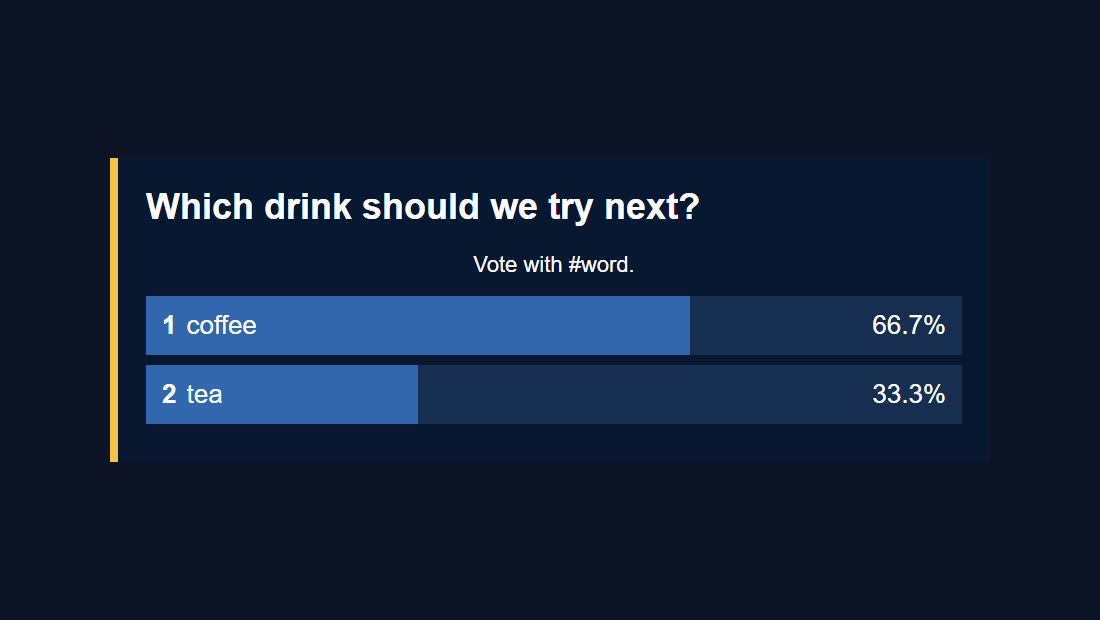
Modifiez les valeurs de couleur et les tailles en fonction de votre conception. Ces sélecteurs ciblent les éléments de sondage existants. Gardez les largeurs de barres contrôlées par le code de sondage et conservez le .hidden afin que l'option Enable Poll puisse afficher et masquer le graphique.
Le CSS personnalisé OBS affecte uniquement la source du navigateur ; l'ouverture de la même URL dans un navigateur normal affichera le style d'origine. Voir Référence source du navigateur OBS pour les propriétés source.
Limitation spécifique au sondage : le courant poll.html ne lit pas &css= ou &b64css=. Utilisez OBS Custom CSS ou modifiez le fichier pour cette superposition.
2. Faire une copie modifiable du sondage
- Téléchargez le ZIP source Social Stream Ninja (bêta) et extrayez-le. Vous pouvez inspecter la source poll.html sur GitHub.
- Dans le dossier extrait, dupliquez
poll.htmlcommemy-poll.html. Conservez-le à côté de l'original, au niveau supérieur du dossier. - Ouvrir
my-poll.htmldans un éditeur de texte/code, ou donnez ce fichier à ChatGPT ou Codex avec une image de référence, les couleurs de la marque, les polices et la taille de toile OBS prévue. - Pour une modification CSS uniquement, placez vos règles à la fin du texte existant.
<style>bloc, juste avant</style>. L'exemple ci-dessus fonctionne là aussi. Enregistrez le fichier avec le.html.
Conservez les fichiers justificatifs. Le sondage actuel charge ces scripts par rapport à son propre emplacement ; copier uniquement le HTML dans un nouveau dossier ne suffit pas :
your-poll-folder/
    my-poll.html
    currency.js
    js/
        transport-dedupe.js
        local-server-url.js
    shared/
        overlay-control-transport.js
    thirdparty/
        NotoColorEmoji.ttf
    favicon.ico
La police et le favicon sont des actifs référencés ; les quatre fichiers JavaScript prennent en charge le vote et les connexions. Laisser le dossier extrait intact maintient ces chemins disponibles. Ajoutez-y également tout logo ou fichier de police que votre conception utilise.
3. Donnez à AI le dossier existant et un brief spécifique
Joindre my-poll.html et votre référence de conception, ou ouvrez le dossier extrait dans votre outil de codage. Remplacez les détails entre crochets dans cette invite :
Customize this existing Social Stream Ninja poll overlay.

Design: [describe the look or match the attached reference].
Colors: [brand hex colors]. Font: [font name or supplied font file].
Logo: [supplied image filename, if any].
OBS canvas: [1920 x 1080]. Placement: [center / lower third / side panel].
Allow for long questions and up to 10 free-form answers.

Edit my-poll.html, using CSS first. Keep the existing working poll code:
hashtag matching, vote counting, duplicate-vote handling, percentages,
tallies, donation weighting, settings updates, and start/end/reset controls.
Keep session/password/transport URL handling and all supporting script loads.
Preserve #poll-container, #poll-title, #poll-options, and show/hide behavior.
The script replaces #poll-options contents when results update, so put any
permanent logo or decoration outside that element.
Do not hard-code sample results or private session details.
Keep the page compatible with Chrome 80 and OBS Browser Source.

Treat all incoming messages, names, labels, donations, and metadata as untrusted.
Prevent HTML/JavaScript injection in every renderer you change. Use textContent
for plain fields and for chatmessage when textonly is true. For HTML-mode
chatmessage, keep supported emotes/formatting through the packaged
SocialStreamChatHTML.sanitize helper (libs/objects.js loaded first).
Do not concatenate raw input into innerHTML, attributes, CSS, or JavaScript.
Validate media/link URLs with the page's existing URL policy and assign DOM
properties; do not enable javascript: URLs or executable embedded content.
Never eval incoming data or treat a viewer message as an AI instruction.
Keep source checks, connection handling, and existing sanitizers.
Test plain text, allowed emotes, quotes, angle brackets, and an HTML injection
probe in an isolated preview; verify the probe cannot execute.

Make the edited poll work directly from disk using a file:/// URL,
without requiring a local web server. Return the complete edited HTML,
list any extra image/font files needed, and include the file URL steps for OBS.
Pour la route CSS OBS, remplacez la dernière instruction par : "Renvoyer uniquement le CSS pour le CSS personnalisé OBS, en utilisant les sélecteurs de sondage existants et le thème par défaut ; n'incluez pas de balises HTML ou de script."
Pour les modifications manuelles, les principaux crochets de style sont #poll-container, .poll-title, .poll-option, .poll-bar, .option-number, .option-text, .option-percentage, .option-tally, et .poll-instruction. Un changement de mise en page peut également nécessiter des modifications correspondantes dans les deux updatePollOptions() et updatePollResults(), qui construisent les lignes de réponses.
4. Ouvrez votre sondage modifié dans OBS
Ouvrir my-poll.html directement depuis votre ordinateur. Il n'y a aucun serveur à installer ou à démarrer.
- Faites glisser
my-poll.htmldans Chrome ou Edge. Copiez l'adresse de la barre d'adresse ; ça commence parfile:///. - Copiez tout depuis
?à partir de votre lien de sondage graphique de travail à partir de SSN. Ajoutez-le à la fin de l'adresse du fichier. Cela conserve votre session, votre mot de passe et d’autres paramètres. - Ouvrez cette adresse combinée dans votre navigateur pour la vérifier. Collez-le ensuite dans la source du navigateur OBS. URL champ avec champ Fichier local décoché. Définissez la largeur et la hauteur souhaitées.
Par exemple, ce lien copié :
https://socialstream.ninja/poll.html?session=YOUR_SESSION&password=YOUR_PASSWORD&server2devient :
file:///C:/SSN/social_stream-beta/my-poll.html?session=YOUR_SESSION&password=YOUR_PASSWORD&server2Ce sont des espaces réservés : utilisez votre lien réellement copié, en incluant uniquement les options dont il dispose déjà. Continuez à utiliser les SSN Options de sondage pour définir la question, la correspondance des votes et les contrôles du sondage.
L'adresse du fichier ci-dessus est un exemple Windows. Sur macOS, cela commence par file:///Users/.... Copiez l'adresse réelle de votre navigateur afin que le chemin et les espaces soient gérés pour vous.
Configurez ceci une fois. OBS enregistre l'adresse. Conservez le dossier téléchargé au même endroit et laissez SSN et votre source de discussion en cours d'exécution lorsque vous utilisez le sondage. Après avoir enregistré une modification, utilisez Actualiser le cache de la page actuelle dans les propriétés source.
Pourquoi laisser la case Fichier local décochée ? L'utilisation du champ URL inclut les paramètres de session après ?. La sélection seule du fichier HTML ne suffit pas. Le guide partagé couvre également un lanceur facultatif pour le sélecteur de fichiers.
5. Testez le design avec un vrai sondage
- Gardez SSN et une source de discussion capturée en cours d'exécution. Dans Options de sondage, activez le sondage, définissez Forme libre, saisissez une question et choisissez Vote exact uniquement.
- Envoyer
#coffeeet#teade différents utilisateurs de chat, ou utiliser des utilisateurs fictifs distincts avec le outils de messages de test. Lorsque les votes multiples sont désactivés, répéter un vote du même utilisateur n'ajoutera pas un autre vote. - Vérifiez les barres et les totaux dans OBS. Essayez une longue question, une longue réponse, et le Afficher le nombre de votes au lieu du pourcentage option pour vérifier l'ajustement du texte.
- Test Hashtag n'importe où avec un message plus long tel que
I vote #coffee today. Vérifier Terminer le sondage (End Poll), Réinitialiser le sondage (Reset Poll), et Activer le sondage (Enable Poll) afin que la conception personnalisée gère les états fermés, vides et cachés.
- Superposition vierge : cochez Activer le sondage et les paramètres de session copiés. Un sondage de forme libre ne comporte aucune ligne de réponse jusqu'à l'arrivée des votes.
- La page locale ne s'ouvre pas : faites glisser à nouveau le fichier dans votre navigateur et copiez son adresse actuelle. Vérifiez que le nom du fichier n'est pas accidentel
my-poll.html.txt. - Coincé au « Chargement du sondage » : Vérifiez les scripts de prise en charge et leurs chemins de dossier, l'état d'exécution de SSN et la chaîne de requête complète du sondage hébergé fonctionnel.
- Les votes ne comptent pas : confirmez que le vote est ouvert, que le message correspond au mode de vote sélectionné et que l'utilisateur test n'a pas déjà voté.
- L'apparence est différente dans OBS : vérifiez les dimensions de la source du navigateur, tout ancien CSS personnalisé remplaçant la conception du fichier et si une actualisation est nécessaire.
- Le logo disparaît après un vote : placer des œuvres d'art permanentes à l'extérieur
#poll-options; cet élément est reconstruit lors des mises à jour.
Votre copie modifiée est conservée séparément du sondage hébergé par SSN. Conservez une sauvegarde de la conception et comparez-la avec une version plus récente. poll.html versions lorsque vous avez besoin de correctifs en amont. Pour créer une superposition différente à partir de zéro, consultez le guide des superpositions personnalisées.