
Do I need this?
“Local” means one of two things: a voice built into SSN that runs in your browser, or a voice server you run yourself.
| I want… | Do this |
|---|---|
| Free voices with nothing to install | Use the built-in voices. Most people stop here. |
| To use a voice server I already run | Connect a server. |
| A cloned voice | See voice cloning. |
| Fish Audio in OBS | See the Fish Audio setup. |
| Paid cloud voices | See the TTS reference. |
Built-in voices (nothing to install)
These run inside SSN in your browser. No server, Docker, or API key.
| Voice | Sound | Computer load | Link value |
|---|---|---|---|
| Kokoro | Excellent | Medium. Faster with a GPU. | ttsprovider=kokoro |
| Piper | Very good | Low. CPU only. | ttsprovider=piper |
| Kitten | Good | Very low. CPU only. | ttsprovider=kitten |
| eSpeak-NG | Robotic | Minimal. CPU only. | ttsprovider=espeak |
Set it up in 4 steps
- Add
&speech=en-US&ttsprovider=kokoroto yourdock.htmllink. (Orpiper,kitten,espeak.) - Add that link to OBS as a Browser Source. That's the page that makes the sound.
- In its properties, turn on Control audio via OBS.
- Send a short test chat, like
Testing local TTS.
dock.html?session=YOUR_SESSION&speech=en-US&ttsprovider=kokoro
Voices, speed, and other languages: provider settings. Prefer clicking? Use the setup guide.
Connect your own TTS server
A server gives you more voices, voice cloning, or one voice you reuse across tools. SSN talks to it like an OpenAI-compatible speech server. No API key needed.
- Start your server. Kokoro-FastAPI is the easiest.
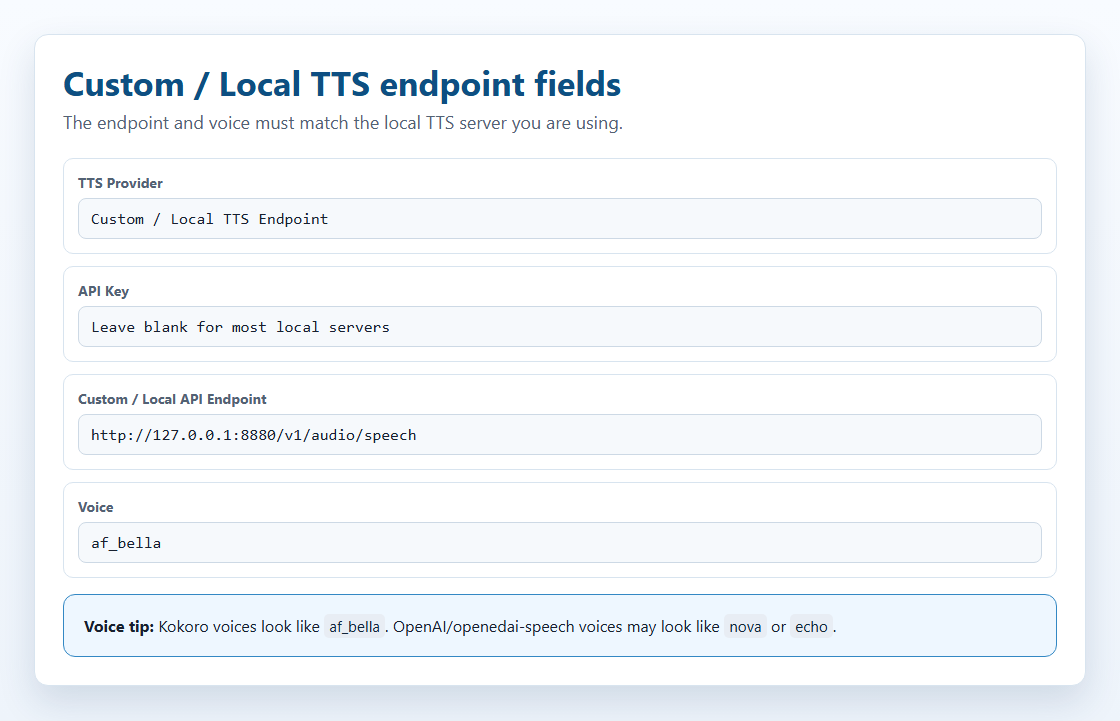
- In SSN, open the TTS provider list and pick Custom / Local TTS Endpoint.
- In Custom / Local API Endpoint, enter your server's address, like
http://127.0.0.1:8880/v1/audio/speech. - Leave the API key blank.
- Pick a voice your server knows:
af_bellafor Kokoro,novafor openedai-speech. - Copy the link into OBS and send a test chat.
| Server | Model | GPU | Disk | Port |
|---|---|---|---|---|
| Kokoro-FastAPI (recommended) | Kokoro 82M | Optional | ~2 GB | 8880 |
| openedai-speech (Piper) | Piper | CPU only | <1 GB | 8000 |
| kokoro-web | Kokoro 82M | Optional | ~2 GB | 3000 |
These need Docker Desktop installed and running. It's free for personal use.
The localhost rule
This is the most common mistake.
localhost and 127.0.0.1 always mean “this same computer.” If OBS is on one PC and the voice server on another, 127.0.0.1 in OBS points at the OBS PC.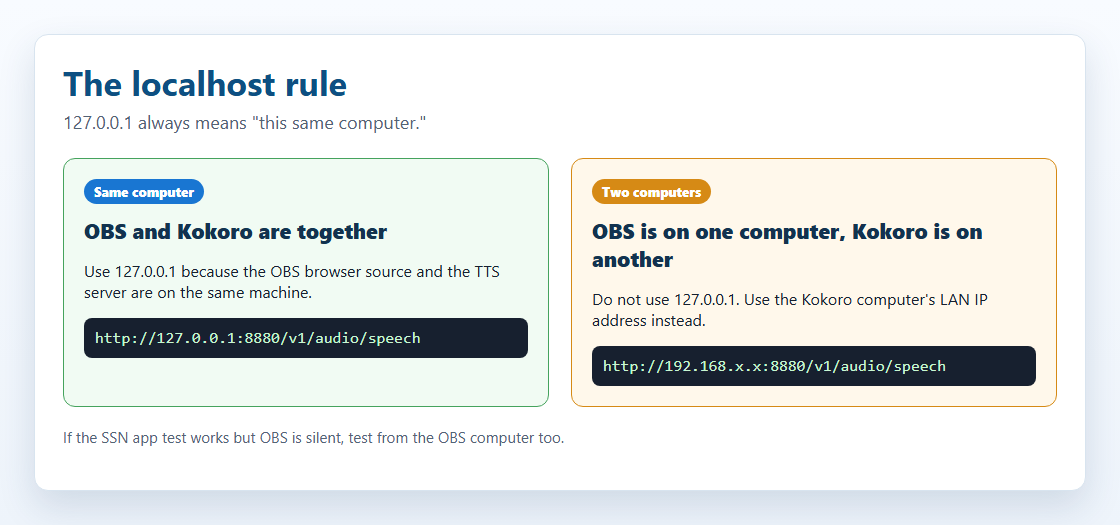
| Your setup | Use this address |
|---|---|
| OBS and the server on the same PC | http://127.0.0.1:8880/v1/audio/speech |
| Server on another PC at home | http://192.168.x.x:8880/v1/audio/speech, with that PC's local IP |
| SSN app test works, OBS is silent | OBS needs its own working address. The app test doesn't prove OBS can reach the server. |
Also check the firewall allows the port, and that Docker published it (-p 8880:8880).
Kokoro-FastAPI
Kokoro-FastAPI runs Kokoro as a local server. Works on CPU; no GPU needed.
- Open a terminal (Command Prompt, PowerShell or Terminal) and run one of these:
docker run -p 8880:8880 ghcr.io/remsky/kokoro-fastapi-cpu:v0.2.2
NVIDIA GPU (faster):
docker run --gpus all -p 8880:8880 ghcr.io/remsky/kokoro-fastapi-gpu:v0.2.0post4
The first run downloads about 1.5–2 GB, once. - Open
http://localhost:8880/web/. You should see a page to test voices (67+ available). - Use this link (change the address if the server is on another PC):
dock.html?session=YOUR_SESSION&speech=en-US&ttsprovider=customtts&openaiendpoint=http://127.0.0.1:8880/v1/audio/speech&voiceopenai=af_bella
af_bella, af_sarah, am_adam or bf_emma. OpenAI names like nova or alloy may not work.Start it with Docker automatically:
docker run -d --restart unless-stopped -p 8880:8880 ghcr.io/remsky/kokoro-fastapi-cpu:v0.2.2
openedai-speech (Piper and XTTS-v2)
Option A: Light Piper server (CPU)
Under 1 GB. No voice cloning.
docker run -d --restart unless-stopped -p 8000:8000 ghcr.io/matatonic/openedai-speech-min
Voices: alloy, echo, fable, onyx, nova, shimmer.
dock.html?session=YOUR_SESSION&speech=en-US&ttsprovider=openai&openaiendpoint=http://localhost:8000/v1/audio/speech&voiceopenai=nova
Running it from source on Windows (HTTP 500 errors)
Add its virtual environment's Scripts folder to PATH first. Otherwise it can't find piper.exe or ffmpeg.exe.
cd openedai-speech
$env:Path = "$PWD\.venv\Scripts;$env:Path"
.\.venv\Scripts\python.exe speech.py --xtts_device none -H 127.0.0.1 -P 8000
Option B: XTTS-v2 voice cloning (GPU)
Needs the full server, not openedai-speech-min. Plan on about 4 GB of GPU memory. CPU works but is slow.
Set up XTTS-v2 in 4 steps
- Get the server and start it:
git clone https://github.com/matatonic/openedai-speech.git
cd openedai-speech
Copy-Item sample.env speech.env
docker compose up -d
On macOS or Linux, usecp sample.env speech.env. Docker needs GPU access. The model downloads on first use. - Make a clean reference clip of a voice you have permission to use. Mono, 22050 Hz, 6–30 seconds:
ffmpeg -i input.mp3 -ac 1 -ar 22050 -t 6 -y voices/me.wav
- In
config/voice_to_speaker.yaml, add it under the existingtts-1-hdsection (keep the voices already there):tts-1-hd: me: model: xtts speaker: voices/me.wav language: enChangemeto the name SSN will send. - Run
docker compose restart, then use:dock.html?session=YOUR_SESSION&speech=en-US&ttsprovider=customtts&openaiendpoint=http://127.0.0.1:8000/v1/audio/speech&openaimodel=tts-1-hd&voiceopenai=me&openaiformat=wav
openaimodel=tts-1-hd is required. Without it SSN sends tts-1, and the server uses Piper instead. voiceopenai must match your voice name in the YAML file.Blocked by the browser? Run the bridge and change only openaiendpoint to http://127.0.0.1:8124/v1/audio/speech.
The local TTS bridge
A small helper from SSN. It takes SSN's request, passes it to your voice server, and hands the audio back in a way browsers accept. Needs Node.js.
http://127.0.0.1:8124/v1/audio/speech, even if the voice server is on another PC.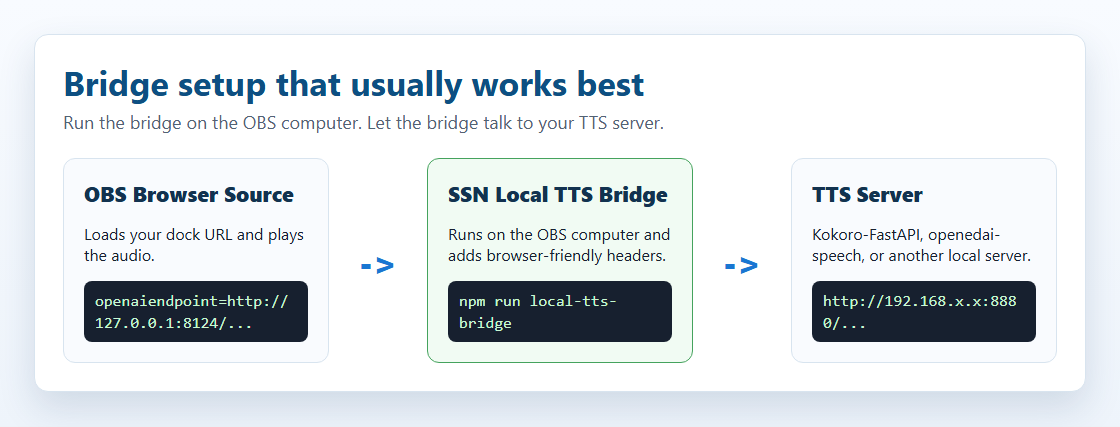
- Tell the bridge where your server is. PowerShell:
$env:SSN_TTS_TARGET="http://127.0.0.1:8880/v1/audio/speech"
Server on another PC? Use its local IP, likehttp://192.168.x.x:8880/v1/audio/speech. - In the SSN folder, run
node scripts/local-tts-bridge.cjs. Leave it running. - Point SSN at the bridge:
dock.html?session=YOUR_SESSION&speech=en-US&ttsprovider=customtts&openaiendpoint=http://127.0.0.1:8124/v1/audio/speech&voiceopenai=af_bella
macOS/Linux, in one line: SSN_TTS_TARGET="http://127.0.0.1:8880/v1/audio/speech" node scripts/local-tts-bridge.cjs. Inside the local-tts-bridge folder, node server.cjs does the same. Change the port with SSN_TTS_BRIDGE_PORT=8125. All options: bridge README.
GPT-SoVITS mode
GPT-SoVITS uses its own /tts format. The bridge translates for it.
$env:SSN_TTS_REF_AUDIO_PATH="C:\voices\speaker.wav"
$env:SSN_TTS_REF_TEXT="Reference audio transcript here."
$env:SSN_TTS_TARGET="http://127.0.0.1:9880/tts"
node scripts/local-tts-bridge.cjs --mode gptsovits
dock.html?session=YOUR_SESSION&speech=en-US&ttsprovider=customtts&openaiendpoint=http://127.0.0.1:8124/v1/audio/speech&openaiformat=wav
F5-TTS server mode
Some F5-TTS wrappers use /synthesize_speech/?text=...&voice=.... The bridge translates for them.
$env:SSN_TTS_TARGET="http://127.0.0.1:7860/synthesize_speech/"
node scripts/local-tts-bridge.cjs --mode f5
dock.html?session=YOUR_SESSION&speech=en-US&ttsprovider=customtts&openaiendpoint=http://127.0.0.1:8124/v1/audio/speech&voiceopenai=default_en&openaiformat=wav
Voice cloning
Cloning isn't an SSN setting. It's a feature of some voice servers. SSN sends the chat text; the server picks the cloned voice.
- Record a clean clip of one speaker, usually 3–30 seconds, with little background noise.
- Some servers also need the exact words spoken in the clip.
- The server turns the clip into a voice profile.
- SSN sends chat text with
ttsprovider=customtts. - The server returns audio (usually WAV or MP3) and SSN plays it.
With 6 GB of GPU memory or less, start with small models on OpenAI-compatible servers. Bigger models work too if hosted elsewhere.
| Option | Clones from | Fits 6 GB GPU? | How to connect |
|---|---|---|---|
| XTTS-v2 / openedai-speech | Short WAV clip | Yes, about 4 GB | Direct, /v1/audio/speech. Project is archived. |
| chatterbox-tts-api / Chatterbox-TTS-Server | Reference clip | Likely with Turbo or small chunks | Direct or bridge. GPU runs smoother than CPU. Setup varies by fork. |
| Qwen3-TTS (0.6B / 1.7B) | 3-second clip | Likely (0.6B Base) | Needs an OpenAI-compatible wrapper. |
| GPT-SoVITS | 5 seconds; better with 1 minute | Likely with fp16 / light install | Bridge --mode gptsovits. |
| F5-TTS | Clip plus its transcript | Maybe | A wrapper, or bridge --mode f5 with F5-TTS_server. |
| MisoTTS 8B | Prompt audio | No; 24 GB recommended | Remote hosting only. No local REST endpoint in the repo. |
Built-in Kokoro and Kokoro-FastAPI don't clone voices.
What was tested with SSN
Checked with both dock.html and featured.html:
- openedai-speech (Piper): real CPU speech, direct and through the bridge.
- Chatterbox-TTS-Server: real CPU speech with
Emily.wav, direct and through the bridge. - chatterbox-tts-api: request format tested, direct and through the bridge.
- GPT-SoVITS and F5-TTS_server: through bridge modes only.
- F5-TTS official and Qwen3-TTS: need a wrapper first (CLI, Gradio or library only).
What computer do I need?
Rough starting points, not promises. Model size, text length and other apps all change memory use.
| Option | Minimum | Comfortable |
|---|---|---|
| System TTS / eSpeak | Any PC | Any PC |
| Built-in Kitten | Low-end CPU, 4 GB RAM | Laptop CPU, 8 GB RAM |
| Built-in Piper | Modern CPU, 4–8 GB RAM | Modern CPU, 8 GB RAM |
| Built-in Kokoro | Modern CPU, 8 GB RAM | WebGPU GPU or fast CPU, 8–16 GB RAM |
| Kokoro-FastAPI | CPU, 8 GB RAM | Optional NVIDIA GPU, 8–16 GB RAM |
| openedai-speech Piper | CPU, 4–8 GB RAM | CPU, 8 GB RAM |
| openedai-speech XTTS | NVIDIA GPU ~4 GB, 8–16 GB RAM | 6 GB+ NVIDIA GPU, 16 GB RAM |
| Chatterbox | CPU on some builds, slow | 6 GB+ NVIDIA GPU, 16 GB RAM |
| GPT-SoVITS / F5-TTS / Qwen3-TTS | CPU for testing, slow | 6 GB+ NVIDIA GPU, 16 GB RAM |
| MisoTTS 8B | Not at 6 GB | 24 GB GPU or remote host |
Get the audio into OBS
OBS Browser Source (recommended)
Works with built-in voices and your own server.
- Add a Browser Source with your
dock.htmlTTS link. - Turn on Control audio via OBS.
- Click OK. TTS now shows in the OBS mixer.
SSN desktop app
The desktop app uses the same link settings. But the sound plays from the app, not OBS. Capture it with Desktop Audio or Audio Input Capture. To keep TTS separate from other sounds, send the app to a virtual cable: routing steps.
More desktop app details
App windows are less strict about browser permissions (CORS) than Chrome. The bridge is still the safest choice for servers that refuse browser requests. For built-in Kokoro, the app can use its own ninjafy.tts path instead of loading the model in the browser.
&speech=en-US with no provider) depends on the voices OBS has. Often none, or voices that make no capturable sound. Use a provider above instead.Side-by-side
| Option | Setup | Quality | Private | Works in OBS | Cost |
|---|---|---|---|---|---|
| Built-in Kokoro | None | 5/5 | Yes | Yes | Free |
| Built-in Piper | None | 4/5 | Yes | Yes | Free |
| Built-in Kitten | None | 3/5 | Yes | Yes | Free |
| Built-in eSpeak | None | 2/5 | Yes | Yes | Free |
| Kokoro-FastAPI | Docker | 5/5 | Yes | Yes | Free |
| openedai-speech | Docker | 4/5 | Yes | Yes | Free |
| ElevenLabs | API key | 5/5 | No | Yes | Paid tiers |
| System TTS | None | 2/5 | Yes | Needs audio routing | Free |
Fix problems
| Problem | Try this |
|---|---|
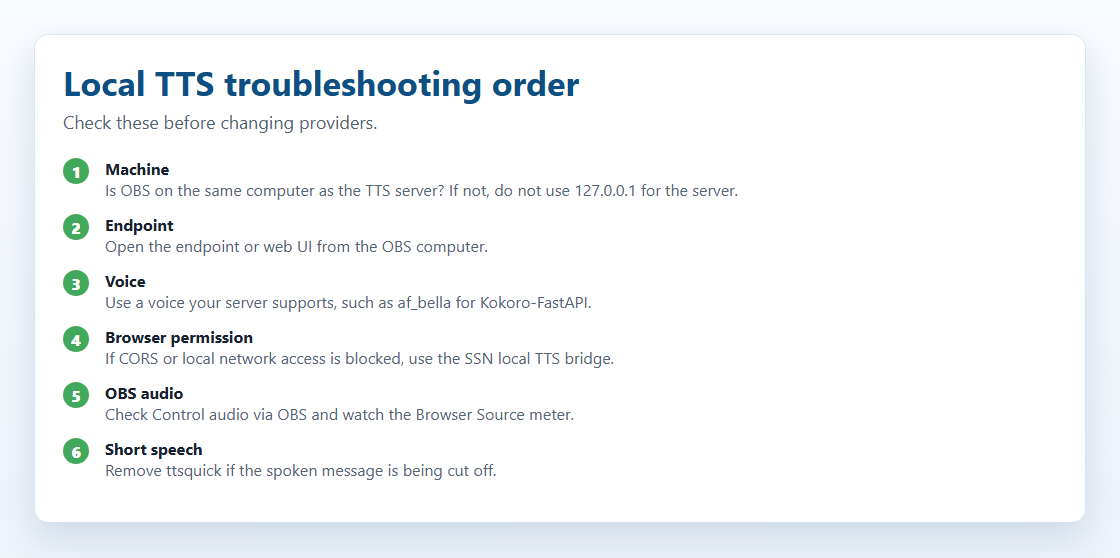
| App test works, OBS is silent | OBS must reach the server itself. Server on another PC? Replace 127.0.0.1 with its local IP. Check Control audio via OBS. Still blocked? Run the bridge on the OBS PC. |
| Only the first letter or words are read | Remove ttsquick from the OBS link (for example &ttsquick=14) and refresh. While testing, also remove typewriter= to rule out timing issues. |
| Server not responding | Check Docker and the container are running. On the server PC, open http://127.0.0.1:8880/web/ (Kokoro-FastAPI, or your server's port). From the OBS PC, open http://SERVER_LAN_IP:8880/web/. If that fails, OBS can't reach it either. Check the server's firewall. |
| “Blocked by CORS”, “private network”, or “failed fetch” | The browser blocked it before the server saw it. Run node scripts/local-tts-bridge.cjs on the OBS PC and use http://127.0.0.1:8124/v1/audio/speech. The hosted beta dock page is more likely to be blocked; the bridge or a local app window is easier. |
| Wrong voice, or voice not found | Kokoro-FastAPI: af_bella, af_sarah, am_adam, or one from its web page. openedai-speech: nova, echo, alloy. Some servers care about upper/lower case. |
| Plays, but OBS doesn't capture it | Turn on Control audio via OBS. Watch the OBS mixer meter during a test. Make sure you set &ttsprovider=; System TTS may need desktop audio or a virtual cable. |
| Docker image not found | Image tags change. Check the current tag on Kokoro-FastAPI or openedai-speech. |
For server builders
How SSN talks to a custom server. You only need this if you're building or debugging one.
chat text -> SSN -> your endpoint (or the bridge) -> TTS server -> audio -> SSN plays it
What SSN sends
With ttsprovider=customtts, localtts or openai, SSN sends a JSON POST:
POST /v1/audio/speech
{
  "model": "tts-1",
  "input": "Chat message text",
  "voice": "af_bella",
  "response_format": "mp3",
  "speed": 1.0
}
With no API key set, SSN sends no Authorization header.
What SSN can play back
| Response | Works? | Notes |
|---|---|---|
| Audio file | Yes | Best. audio/mpeg, audio/wav, audio/ogg, audio/aac, or any browser-playable type. |
| JSON with an audio URL | Yes | Checks url, audio_url, output_url, data.url, and the first data[] item. |
| JSON with base64 audio | Yes | Checks audio, audio_data, audioContent, b64_json, nested data fields, and data URLs. |
| Raw PCM | Only if wrapped | Send it as a WAV file or base64 WAV. |
Formats: mp3 is small and widely supported. wav suits cloning servers and bridge testing. Use opus only if server and browser both support it.
No streaming yet. SSN waits for the whole response, then plays it. Keep chat messages short.
Link settings for your own server
| Setting | Example | What it does |
|---|---|---|
ttsprovider | customtts | Use your own server. (openai also works.) |
openaiendpoint | http://localhost:8880/v1/audio/speech | Your server's address. Change the port to match. |
speech | en-US | Turns on TTS, in English. |
voiceopenai | af_bella | Voice name. Depends on the server. |
openaimodel | tts-1-hd | Model name. Default tts-1. |
openaiformat | mp3 | mp3, wav, opus or flac. |
openaispeed | 1.0 | Speaking speed (0.5–2.0). |
Also accepted: customttsendpoint, localttsendpoint, customttsvoice, localttsvoice, customttsmodel, localttsmodel, customttsformat, localttsformat. Reading options like simpletts, skipmessages and ttsquick work with any provider: all link settings.
Example links:
Kokoro-FastAPI:  dock.html?session=YOUR_SESSION&speech=en-US&ttsprovider=customtts&openaiendpoint=http://localhost:8880/v1/audio/speech&voiceopenai=af_bella&openaispeed=1.1
openedai-speech: dock.html?session=YOUR_SESSION&speech=en-US&ttsprovider=customtts&openaiendpoint=http://localhost:8000/v1/audio/speech&voiceopenai=nova
kokoro-web:      dock.html?session=YOUR_SESSION&speech=en-US&ttsprovider=customtts&openaiendpoint=http://localhost:3000/api/v1/audio/speech&voiceopenai=af_bella