
Keep the last three alerts visible
- Open Multi-Stream Alert Box → Multiple alerts / Event list.
- Choose Last three — transparent. This enables stacking, compact cards and Keep alerts until replaced. Change Visible alerts for a different count.
- Choose Preview sample events to see fictional Twitch, YouTube and Facebook events. This preview does not connect to your stream.
- Copy the Multi-Stream Alert Box link. In OBS Studio or Streamlabs Desktop, add a Browser Source to your scene and paste the link. Start with a 900 × 700 canvas and resize it to fit your cards.
- Connect your event sources in SSN. New events join the stack and replace its oldest unpinned card.
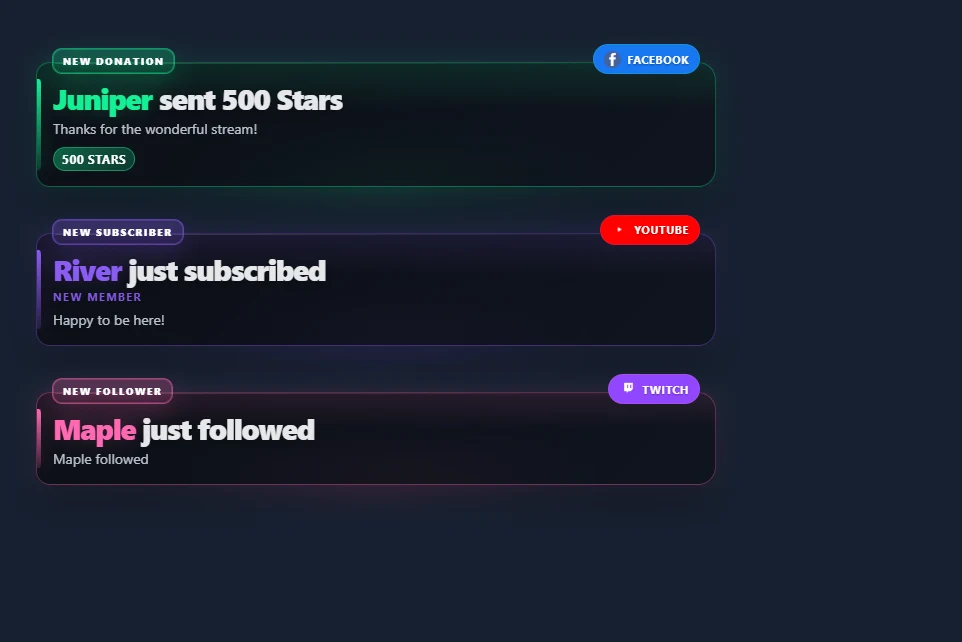
Open a sample stack · Browse stacked alert styles
Turn off Keep alerts until replaced to let each card expire after the configured display duration. Stacking displays eligible arrivals immediately; the single-alert queue applies when stacking is off. Sound plays on new alerts. Persistent video plays once, and the media area hides after the display duration while the text stays visible.
Use a compact audience event list
Open Activity Feed / Events and choose Last three — transparent. The audience preset hides the heading, timestamps, metadata, click-to-feature, counts, ad notices and casual activity. It keeps follows, subscriptions, paid support and other selected event categories. Turn the preset off if you want to customize its hidden items individually.
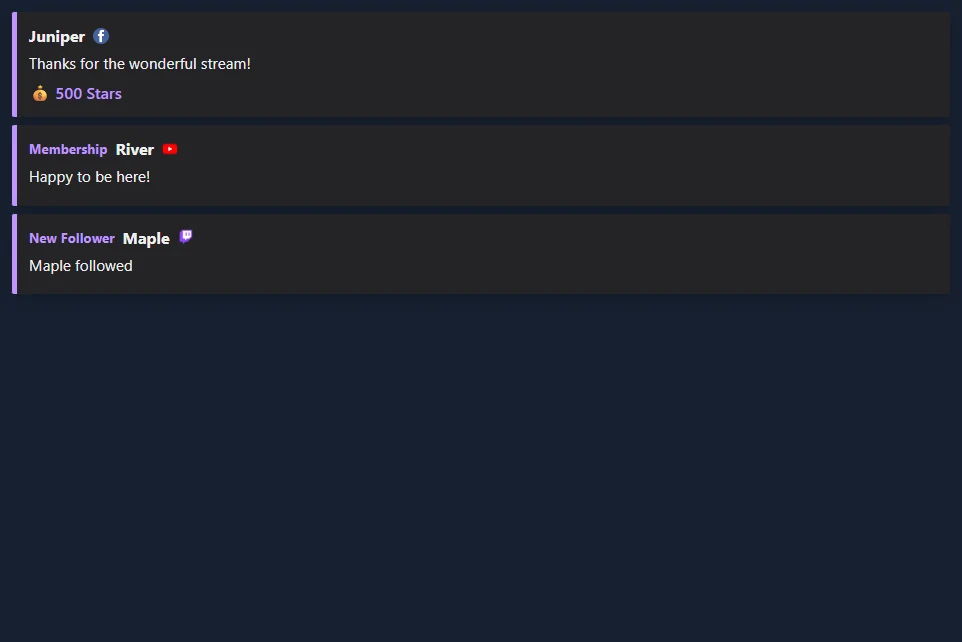
Use Choose which events appear to filter categories, and Sources to Monitor to filter platforms. Set Remove events after to zero or leave it empty to retain rows until replaced. Preview an audience list.
Choose a style and layout
Browse all event-list styles. Each gallery card has a screenshot and a link using your session. Multi-Alerts supports its existing artwork and alert themes in stacks, plus Broadcast, Outlined, Rounded pills and Neon treatments.
| Layout | Use it for |
|---|---|
| List | Several recent events, newest at the top or bottom. |
| Horizontal cards | A row across a scene. Set row width to fit the available space. |
| Rotating event | One visible event at a time, cycling through the retained events. |
| Latest by category | The newest event in each category. Increase the visible limit to include more categories. |
| Scrolling strip | A moving strip of retained events. Scrolling cycle controls its speed. |
Adjust text alignment, wrapping, row width, spacing, background opacity and accent colors. Background opacity replaces a card's gradient with a solid translucent background. Entry animation can use the style default, slide, fade or none. Exit animation can fade or slide a departing card. Reduced-motion preferences disable motion.
History and controls
Enable Remember visible events after refresh to keep the board populated when its Browser Source reloads. History is local to that browser, session and board name; OBS and your ordinary browser have separate storage. The retention setting ranges from 1 to 168 hours. Restored rows use the current filters and do not replay sound or trigger automation. In Multi-Alerts this option requires stacking.
Give separate scenes different Board names. Popup commands target the corresponding board name and surface. Commands sent to a disconnected overlay are not a saved state change. Pause holds new arrivals in a buffer of up to 500 events for stacks and feeds; resume displays them. If that buffer fills, its oldest waiting event is replaced. The single-alert mode uses its configured queue limit.
Pin toggles the newest card's pin; pinned cards occupy visible slots. If every slot is pinned, unpin a card to admit new events. Remove removes the newest card. Clear removes visible events, waiting events and that board's saved history. Multi-Alerts also offers skip, mute, unmute and replay. Replay is a display action, not a new donation or Event Flow trigger.
For a private Events dashboard, enable Show operator buttons to pin or remove individual rows. Leave this option off in audience Browser Sources.
Connect the events you want to show
Both overlays use the events your SSN sources deliver. An overlay style does not add platform permissions or a new event subscription.
| Source | Setup and event coverage |
|---|---|
| Twitch | Use Twitch EventSub for follows, subscriptions, gifts, cheers and raids where your account has access. Chat-only capture does not replace EventSub. |
| Standard Facebook capture can turn visible Stars donations into paid-support rows. Facebook API chat capture does not supply Stars amounts. For follows and supporter subscriptions, use an event provider that delivers those notices to SSN; Facebook chat capture alone does not supply them. | |
| YouTube | Memberships, gifts, Super Chats, Super Stickers and Jewels depend on the chosen capture mode. Public subscriber notices require their API path. See event compatibility. |
| Kick and TikTok | Use the available event-capable source for follows, subscriptions or gifts. Select the event categories you want to show; likes and joins can be hidden. |
| Streamlabs and StreamElements | SSN can capture existing provider event feeds. Connect the provider in SSN and keep its source active. Available events depend on the provider connection and source mode. You can use SSN's display while retaining a provider for events or tips. |
| Other SSN sources | Donation amounts and recognized follow, membership, gift and raid events can use the same displays. See the event reference for source-specific fields and supported actions. |
If a real event is missing, first check whether it appears in SSN's Activity Feed. Check the source connection and event permissions if absent; check overlay filters and minimum amounts if present.
Coming from Streamlabs or StreamElements
For the Streamlabs Event List's always-visible behavior, use Show multiple alerts + Keep alerts until replaced in Multi-Alerts, or the audience preset in Events. Visible alerts / Maximum events sets the count. The history option restores recent visible cards in the same browser. Use category filters and minimum-value controls to choose which support appears.
You can add SSN's link directly as a Browser Source in OBS or Streamlabs Desktop. It does not require an SSN operator dock. Use an SSN style from the gallery, then adjust colors and spacing to fit your scene.