OBSブラウザソース、Chrome拡張機能、デスクトップアプリのどこで読み込む場合も、dock.htmlとfeatured.htmlで自分のフォントを使えます。
dock.html または featured.html で、URLパラメーターまたはOBSのカスタムCSSを使います。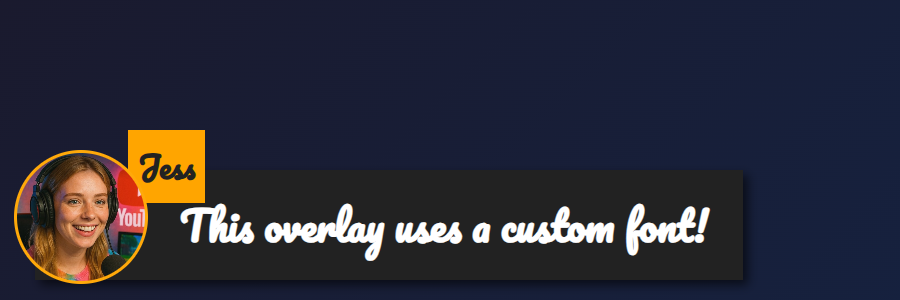
featured.html のオーバーレイに次を付けます: &googlefont=Pacifico を適用します。自己ホストのフォントも、同様に次で使えます: @font-face.フォントファイルへの直接のHTTPSリンクが必要です。OBSやアプリ内のブラウザが取得できるよう、直リンクとCORSを許可するホストを選んでください。
フォントを定義する指定: @font-face でホストしたファイルを指定し、次でオーバーレイに適用します: --font-family.
@font-face {
  font-family: 'MyDockFont';
  src: url('https://your-site.example/fonts/MyDockFont.woff2') format('woff2');
  font-style: normal;
  font-weight: 400;
}

/* Optional second weight */
@font-face {
  font-family: 'MyDockFont';
  src: url('https://your-site.example/fonts/MyDockFont-Bold.woff2') format('woff2');
  font-style: normal;
  font-weight: 700;
}

:root {
  --font-family: 'MyDockFont', 'Segoe UI', 'Arial Unicode MS', sans-serif;
  --comment-font-size: 28px;
  --author-font-size: 24px;
  --message-line-height: 32px;
}
アルメニア語・ロシア語・ラテン文字用など、複数フォントが必要ですか?各font-faceを宣言し、次の一覧に指定します: --font-family 例えば 'FontA', 'FontB', 'FontC', sans-serif。不足する文字があれば、ブラウザが自動で代替フォントを使います。
&css=https://your-site.example/my-font.css をページURLに追加します:
https://socialstream.ninja/dock.html?session=YOURSESSION&css=https://your-site.example/my-font.css
https://socialstream.ninja/featured.html?session=YOURSESSION&css=https://your-site.example/my-font.css
&css= または次でbase64エンコードします: &b64css= (両ページで対応しています)。&font=YourInstalledFont はシステムフォント名を指定します。一方、 &googlefont=Noto+Sans+Armenian,Noto+Sans は、自分でホストしたくない場合にGoogle Fontsを読み込みます。これらの設定は、Chrome拡張機能、Electronアプリ、公開サイトで同じように動きます。すべて同じ次のファイルを読み込むためです: dock.html/featured.html のファイルです。
両ページが使う基本的な文字設定の変数:
:root {
  --font-family: 'MyDockFont', 'FontB', sans-serif;
  --comment-font-size: 28px;  /* message text size */
  --author-font-size: 24px;   /* name text size */
  --comment-font-weight: 600; /* featured.html */
  --author-font-weight: 700;  /* featured.html */
  --message-font-weight: 500; /* dock.html */
  --name-font-weight: 700;    /* dock.html */
  --comment-color: #ffffff;
  --author-color: #ffe08a;
  --comment-bg-color: #161616;
  --author-bg-color: #202020;
}
ドック専用の追加設定: --stylized-emoji, --stylized-img, --text-stroke-width, --text-shadow、行の色(--highlight-base, --highlight-base2に加え、 compact の各種設定)。
注目表示のレイアウト調整: 調整する項目: --comment-width, --comment-padding, --comment-area-bottom、および --comment-area-height で、HTMLを編集せずにローワーサードの位置を変更できます。
CSSの変更と、次のような既存のURL設定を組み合わせます: &scale, &compact、または &hidesource でドックのレイアウトを調整できます。
https://socialstream.ninja/fonts.html で、テスト時にシステムフォントが使えることを確認できます &font=.@font-face のブロックと、 --font-familyの指定を一致させてください。不一致が最もよくある問題です。