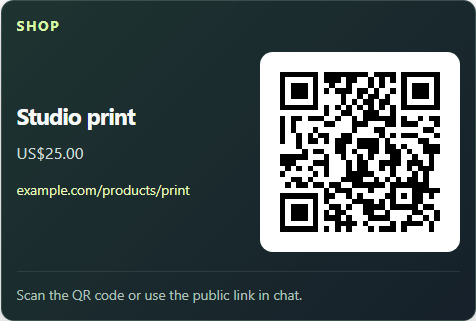
Turn support into a stream moment.

Open Monetization in the SSN popup. Each platform has its own toggle and expandable settings; you can enable several at once. Amazon Wishlist Rank-Up is optional. Click Save setup and keep SSN running. Use Overlay link for to copy each platform's link into a separate OBS Browser Source; start at 800 × 600. The surrounding page is transparent.

Amazon Wishlist Rank-Up

  1. Paste the sharing URL of a public Amazon wishlist and click Load wishlist. Review the imported items and prices. Only priced items present in Amazon's response can be imported; check for missing items. Lists requiring login or Amazon's browser check may not import; the manual item form is the fallback.
  2. Enable the overlay. It shows the cheapest remaining item, a rank, and an optional QR code.
  3. After verifying a purchase yourself, click Confirm current item bought. Add a buyer name only if you know it. The overlay celebrates and advances to the next cheapest item. Undo is available for the last confirmation during the current SSN run.

Amazon's public lists can conceal purchase status, and removing an item does not prove that it was bought. SSN does not infer purchases from missing items, identify buyers, or place orders. Amazon explains its purchased-item and surprise settings here.

QR codes use the wishlist or a wishlist-linked item URL, so viewers buy through the list. A plain product-page link falls back to the wishlist. SSN does not generate Amazon short links. Importing again preserves existing confirmations; list items that disappeared remain available for host review. Each item counts as one rank-up, regardless of quantity. Use one currency per ladder.

Use a list you intend to share publicly and review Amazon's shipping-address settings. Prices are a snapshot, not a live checkout quote.

Preview the wishlist overlay

NinjaBacker donations

NinjaBacker is a free tipping service from the creators of Social Stream Ninja and VDO.Ninja. It takes 0% platform commission, with no NinjaBacker subscription required. Tips are charged directly on your connected Stripe account; Stripe processing fees still apply.

  1. Create or open your account at NinjaBacker, connect your own Stripe account, and complete Stripe onboarding so it can accept payments. Share your public username-based tip link with supporters.
  2. Enter that username and the private Tip ID from the same account's dashboard. The username alone cannot access the private alert feed.
  3. Enable the source and save. SSN checks that the Tip ID matches your username and the account can accept payments. New real tips enter SSN's normal donation flow and can appear in docks, alert overlays, and Event Flow. The dedicated NinjaBacker overlay shows a short alert; enable its QR option for a persistent support card.

Your Tip ID is saved only in this SSN installation, separately from shared settings and overlay URLs. Anonymous donations stay anonymous. Connecting does not replay donation history; dashboard test tips preview the dedicated overlay without entering SSN's real donation flow.

Choose delivery: Live feed is the simplest setup; tips missed while disconnected are not replayed. For queued delivery, select Reliable webhook, paste the signing secret generated in your NinjaBacker dashboard, and save. Copy the Receiver URL into NinjaBacker's Webhook setting, then use Send Test Tip. The preview confirms the connection without paid rewards.

Reliable delivery stores signed tips on the SSN API for up to seven days, including while SSN is off. Keep the signing secret private; it is encrypted on the API server. The private Tip ID is used to verify your account during setup and is not retained by the receiver. Only the active delivery mode runs. Switching back to Live feed deletes the receiver and its queue; remove the old Webhook URL from NinjaBacker too.

Refunds and disputes do not reverse earlier alerts or rewards. The receiver deduplicates delivery IDs and SSN remembers processed deliveries, but a crash between an external action and its acknowledgment can still repeat that action. Irreversible paid actions need their own idempotency checks using the event ID. NinjaBacker receiver guide.

NinjaBacker supports USD, EUR, GBP, CAD, AUD, and JPY; choose your charge currency in its dashboard. SSN preserves the currency and amount in donation events. See NinjaBacker for current terms.

Preview the NinjaBacker overlay

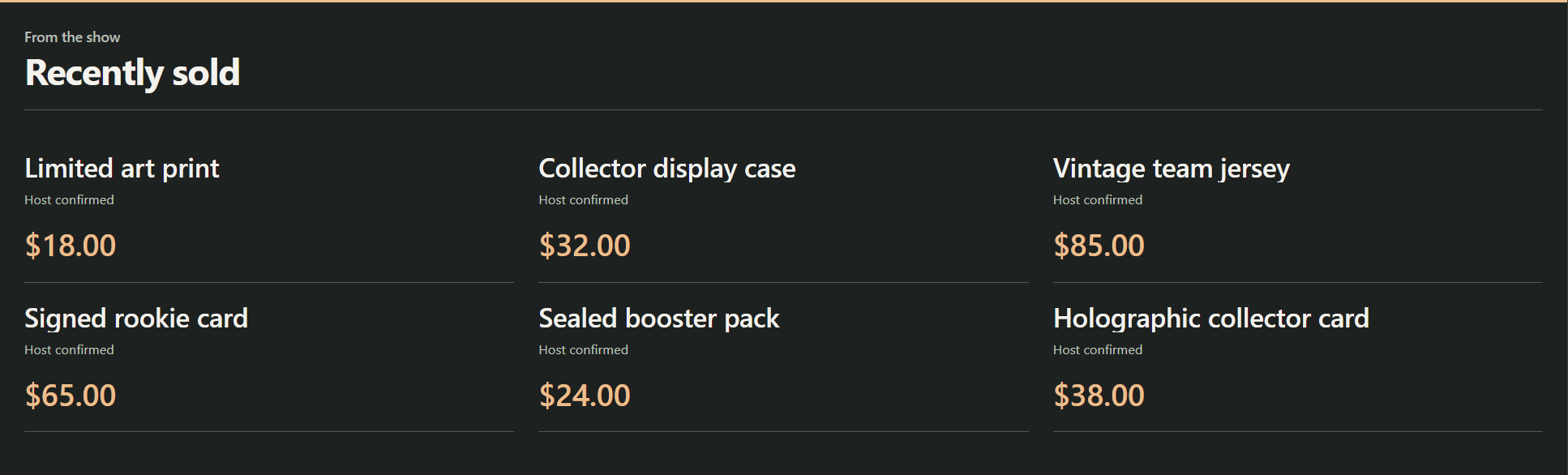
eBay product showcase

  1. Open eBay products & sale alerts settings in Monetization and connect your seller account.
  2. Add up to 20 of your own eBay listing URLs. Use one currency throughout the list.
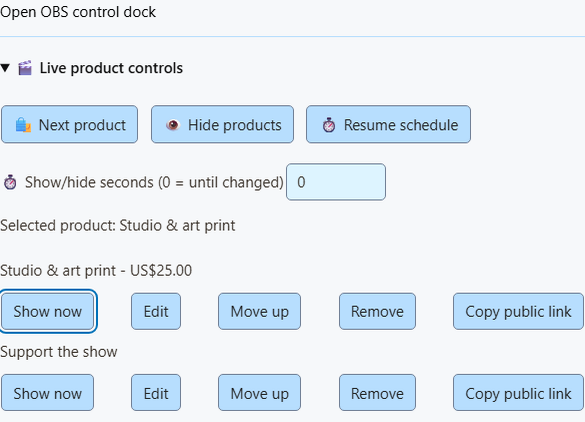
  3. Choose Cycle, Cheapest, or First in list. Use Move up to arrange the list; cycling supports 10–300 seconds per product.
  4. Enable the showcase, save setup, and copy its OBS link. QR codes and chat announcements are optional.

A new paid purchase of any selected listing creates an alert, including products that are not currently on screen. The first purchase completes that list entry and removes it from rotation. Further purchases of the same selected listing still produce alerts. This is a one-gift-per-entry showcase, not an inventory or accounting system.

Auctions show the last fetched bid and a ticking countdown. Prices and paid orders are checked about once a minute while SSN is on. Ended and unavailable listings leave the rotation; neither an ended auction nor a stock change counts as payment. Shipping, taxes, offers and the final checkout total can differ from the displayed price.

Only the connected seller's paid orders can be verified. Adding someone else's listing does not provide their sales feed or make it a gift wishlist. Historical purchases before adding an entry are ignored; a delayed payment can qualify when eBay provides its payment date. Reconnects recover up to 29 days of order changes. Refunds do not automatically reopen completed entries. Buyer names, addresses and payment details are not broadcast, and sales do not increase donation totals.

Availability: requires the SSN eBay service at api.socialstream.ninja, configured with an eBay application that has production Browse and read-only Fulfillment access. Sandbox development is supported separately with sandbox seller accounts and listing URLs; sandbox purchases are labeled as tests. Developer keys alone do not complete seller connection or grant production access. If unavailable, Connect explains this. No NinjaBacker account is needed. Disconnect removes the stored seller tokens; eBay also lets you revoke access in your account settings.

Preview the showcase · eBay seller order access · Listing and auction fields

Throne gifts and automatic ranks

  1. Open Throne gifts settings in Monetization. Enter your Throne username, enable alerts, and save.
  2. Copy the generated Webhook URL into Throne's Webhook integration. This connects gifts directly to SSN; no NinjaBacker account or tipping setup is required.
  3. Add the SSN overlay to OBS. A verified completed gift increases your gift rank. Crowdfunding contributions show alerts; the rank increases only when the gift is fully funded.

The optional QR card links to your public Throne wishlist. Gift announcements and timed chat links are off by default. Anonymous gifts remain anonymous. Reset rank starts a fresh count without replaying previous gifts.

This is a completed-gift counter, not a cheapest-first item ladder. Throne's documented notifications do not include a stable wishlist-item ID, so SSN does not guess which item to unlock. Crowdfund completion does not add its full value to donation totals again.

Keep SSN enabled and connected while receiving gifts. Brief reconnects can recover recent events, but this is not an offline order history. Rank counts are local to this SSN installation. Refunds and cancellations are not automatically reflected because this integration has no documented refund event.

Availability: the SSN Throne receiver at api.socialstream.ninja must be available. If it is unavailable, SSN explains this when saving and leaves the previous setup unchanged. The receiver validates Throne signatures before forwarding public gift fields; the private listening key stays on your device and out of overlay URLs.

Throne webhook setup · Throne fees · Preview the gift overlay

Sounds, actions and printed labels

Incoming activity can use the existing Multi-Alerts sounds and Event Flow actions. Start with one notification path per event to avoid duplicate sounds. In Event Flow, Donation matches rows with hasDonation; Event Type matches purchase, gift, giftcontribution or giftfunded. Add a source condition when a reward should apply to one provider. Completed crowdfunding is a milestone, not another payment. Manual product edits and Show/Next controls do not trigger purchases.

For physical thank-you notes or pickup tags, connect the appropriate trigger to Print Thermal Label in the Windows app; see the printer guide. Print only fields the event supplies: Shopify and eBay deliberately omit buyer identity, so use a product/title or local counter rather than assuming a buyer name exists. A print callback reports job submission, not paper output.

Product controls provide completion feedback to Event Flow and the remote API; see control feedback. Webhook actions can wait for an HTTP response. Neither callback proves a payment, OBS visibility or physical fulfillment. Keep provider delivery IDs when building external rewards so retries can be handled once.

Chat announcements

Announcements are off by default. Enable purchase/next-item announcements for the wishlist, or a tipping-link announcement when enabling NinjaBacker. Each option also has a repeating announcement with a minimum five-minute interval. Messages use SSN's existing chat-output path; your connected chat sources must support sending messages. No messages are sent while SSN is off.

Choose top left or bottom right for each overlay. These overlays use your SSN session and password; viewers only need the public wishlist or tipping link.

Setup details

Save setup applies all platform changes. Each enabled platform uses a separate OBS browser source; selecting a link does not change which platforms are enabled.