
Connect alerts in 5 steps
These steps connect Fourthwall, Ko-fi and Buy Me a Coffee. For signed membership alerts, follow the Patreon steps below.
- Open Monetization → Fourthwall, Ko-fi, Buy Me a Coffee & Patreon alerts and pick your Provider.
- Click Receiver setting and turn on remote API control of extension.
- Go back to Monetization and click Copy webhook URL.
- Paste it into your provider's webhook settings (steps below).
- Keep Social Stream Ninja running.
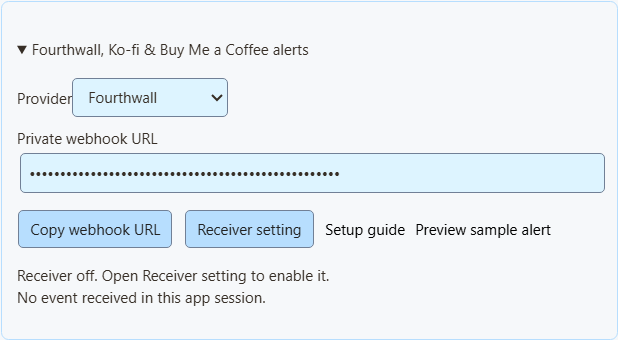
Preview sample alert only shows the look. It doesn't touch totals, Event Flow, or your webhook.
NinjaBacker, Throne, Amazon, and eBay: see the monetization guide. Shopify: see Shopify setup.
Fourthwall
- In Fourthwall, open Settings → For Developers → Webhooks.
- Create a webhook and paste the Fourthwall URL from SSN.
- Tick the events you want (see table).
- Save, and keep SSN running.
| Fourthwall event | Shows up as |
|---|---|
ORDER_PLACED | A purchase. It still adds its donation value, to match older setups. |
GIFT_PURCHASE | A gift. |
DONATION | A donation. |
SUBSCRIPTION_PURCHASED | A new membership. |
Gift-card orders don't add their value twice. Test events are skipped.
Fourthwall webhook documentation · Preview a sample purchase
Ko-fi
- Open Ko-fi Webhooks.
- Paste the Ko-fi URL from SSN into Webhook URL and save.
- Keep SSN running.
Public tips, memberships, shop orders, and commissions all use this one link. Private payments are left out. Shop orders and commissions show as purchases and don't add to donation totals. Ko-fi doesn't report cancelled memberships.
Buy Me a Coffee
- In your creator dashboard, open Integrations and choose New webhook.
- Name it and paste the Buy Me a Coffee URL from SSN.
- Tick the events you want (see table).
- Save and leave delivery on. If something fails, check the delivery history there.
| Event | Shows up as |
|---|---|
donation.created | A donation. |
extra_purchase.created | A purchase. |
commission_order.created | A purchase. |
wishlist_payment.created | A gift contribution. |
membership.started | A new membership announcement (not a separate charge). |
Hidden notes and anonymous supporters stay hidden. Dashboard tests (live_mode: false) are skipped. Refunds don't lower totals.
Buy Me a Coffee webhook documentation · Preview a sample contribution
Patreon chat and new pledges
Use Standard capture for chat and connect a webhook for new-pledge alerts. You can use either on its own or both together.
Capture chat
In SSApp, add a Patreon source in Standard mode, sign in with an account that can access the chat, and open the event or chat page. With the browser extension, enable Patreon capture and open that page in your browser. Keep the chat open and SSN on; new messages appear in your dock, while existing history is skipped.
Connect new-pledge alerts
- Open Monetization → Fourthwall, Ko-fi, Buy Me a Coffee & Patreon alerts, select Patreon, and click Copy webhook URL. In SSApp, your Patreon source's Set up Patreon alerts menu item opens the same panel.
- Sign in to the creator account whose pledges you want to receive. Open Patreon webhook settings, create a webhook using the copied URL, and enable New pledge (
members:pledge:create). - Copy that webhook's signing secret into SSN's signing-secret field. Turn on Enable Patreon alerts and click Save setup. Keep SSN running and switched on to display incoming pledges; the Patreon chat page does not need to stay open for these alerts.
- Open your dock or multi-alerts overlay using the same SSN session and password. Keep subscriber alerts enabled and allow the Patreon source. For automation, use Event Flow's New Subscriber trigger with Patreon selected.
Alerts show new pledges from the time you enable them. The tier and pledge amount appear when Patreon supplies them; hidden names remain Anonymous. Pledges do not increase donation totals. Free memberships, gifts, trials, declined/former memberships, upgrades, cancellations and recurring charges do not generate new-pledge alerts.
Patreon alerts use their own receiver; you do not need to enable remote API control of the extension. To show them in OBS, use your multi-alerts link or the Monetization activity-alert view. Patreon pledge alerts do not require an enabled product showcase.
Closing SSN or turning SSN off keeps pending pledges for up to seven days. Disabling Patreon alerts and saving clears the backlog and stops queuing new pledges. Disconnect removes the receiver; also remove its old webhook in Patreon before creating another connection.
Check the connection
Preview sample alert checks the appearance without sending a webhook or firing Event Flow actions. To check delivery from Patreon, use Send Test on your webhook in Patreon's dashboard, then check SSN's status and last-event time. Dashboard tests can trigger alerts and Event Flow actions when the sample qualifies as a new pledge.
Verified event received; no eligible new pledge means the signature was accepted, but the event did not qualify for an alert. A dashboard sample with an old pledge date is skipped. Keep the members:pledge:create trigger enabled to receive new pledges after setup.
If Patreon reports 401 / Invalid signature, copy the complete signing secret from that same webhook, paste it into SSN, and save again. If SSN remains waiting for an event, check the webhook URL and selected trigger in Patreon. Keep the webhook URL and signing secret private.
Import a Fourthwall product
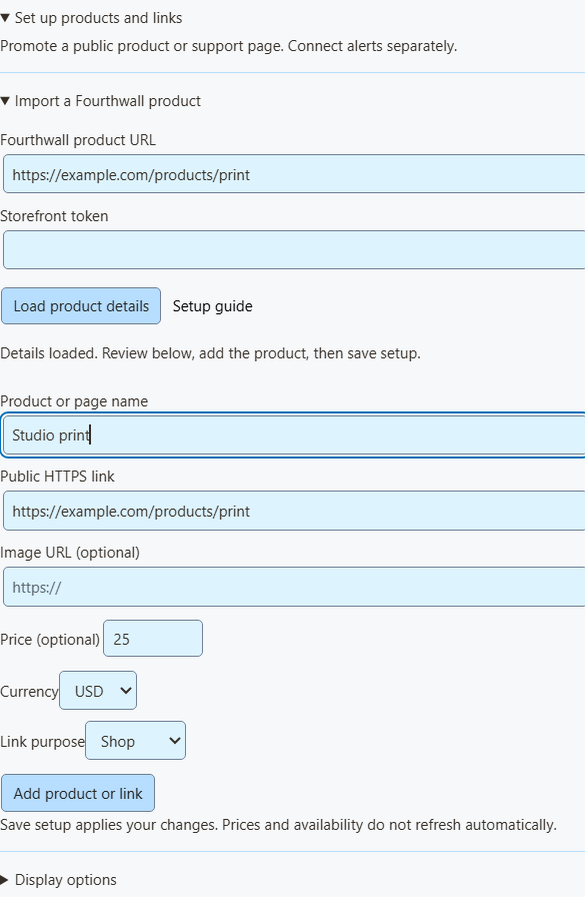
- In Fourthwall, go to Settings → For Developers and create a Storefront token. Don't use an admin API key.
- In SSN, open Products & support links → Set up products and links → Import a Fourthwall product.
- Paste the product's public link and the token. Click Load product details.
- Check the name, image, price, and link. The link must be from the same shop as the token.
- Pick a purpose: Shop, Gift, Support, or Join.
- Click Add product or link, turn on Products & support links, and click Save setup.
What the import does
- It loads one public, available product at a time.
- The token decides which shop is searched. It's used once, then cleared. It's never saved or sent to overlays.
- If variants or bundles have different prices, the price is left blank.
- It's a snapshot. Prices, stock, and images don't update, so import again or edit when they change.
- You can save up to 20 products. Adding the same one again makes a second copy.
Show products and QR codes on stream
You can also add any public link by hand (Shopify, Tiltify, Patreon, and so on). That doesn't connect payment alerts.
- Under OBS overlay for, choose Products & support links.
- Open Overlay link options and pick an Overlay view: Product showcase only, Support card only, Activity alerts only, or Showcase and alerts.
- Click Copy OBS link and add it to OBS as a Browser Source. Start at 800 × 600. Use one source per view.
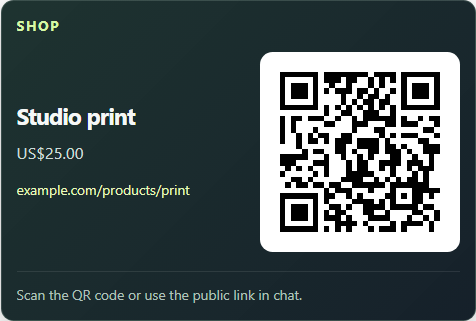
- In Display options, pin the first product or rotate them, and turn on Show QR code.
- Scan the QR code with your phone while looking at your final OBS layout.
Alerts, multi-alerts, and Event Flow
- The showcase shows the product image. The smaller support card doesn't.
- Activity alerts work on their own, and never show a QR code from an unrelated product.
- Multi-alerts and the activity feed work with the same session, with no product list needed. The Monetization activity view needs the product list turned on for other providers; Patreon pledge alerts display independently.
- In Event Flow, the Donation trigger still covers rows with
hasDonation. Use Event Type for purchases or completed gifts. See the event mapping.
Switch products live or share one viewer link: see live product controls.
If nothing appears
| Problem | Try this |
|---|---|
| Receiver is off | For Patreon, turn on Enable Patreon alerts and click Save setup. For Fourthwall, Ko-fi and Buy Me a Coffee, turn on remote API control of extension. |
| Disconnected | Keep SSN on and check your internet. This is SSN's connection, not your provider's. |
| No event received | Check the provider you picked, the URL, and the provider's webhook settings. |
| Event skipped | Tests, private payments, unsupported events, and bad amounts are left out. |
| Event arrived, but no overlay | Check session, password, filters, SSN rules, and that the OBS source is visible. Most purchases aren't donations. |
| Alerts show twice | Don't send the same payment through both the provider and another service. |
| Import failed | Check the product link and Storefront token, and that the product is public and available. You can always type it in by hand. |
This is a live alert feed, not an order record. Use your provider's dashboard for payments, refunds, and shipping. Tiltify alerts aren't supported yet.