
เชื่อมต่อการแจ้งเตือนใน 5 ขั้นตอน
These steps connect Fourthwall, Ko-fi and Buy Me a Coffee. For signed membership alerts, follow the Patreon steps below.
- เปิด Monetization → Fourthwall, Ko-fi, Buy Me a Coffee & Patreon alerts แล้วเลือก ผู้ให้บริการ.
- คลิก การตั้งค่าตัวรับ แล้วเปิด การควบคุมส่วนขยายจากระยะไกลผ่าน API.
- กลับไปที่การสร้างรายได้แล้วคลิก คัดลอก URL ของ webhook.
- วางในหน้าตั้งค่า webhook ของผู้ให้บริการ (ขั้นตอนด้านล่าง)
- เปิด Social Stream Ninja ไว้
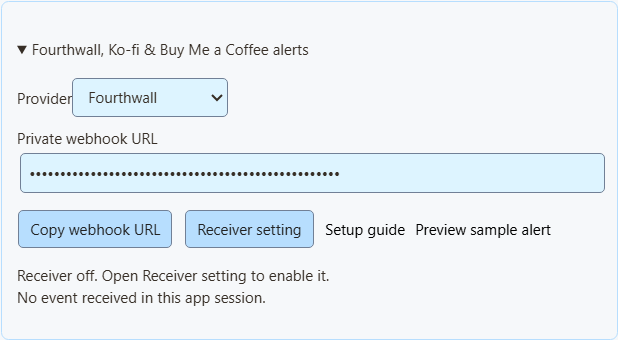
ดูตัวอย่างการแจ้งเตือน แสดงเฉพาะรูปลักษณ์ ไม่กระทบยอดรวม Event Flow หรือ webhook ของคุณ
สำหรับ NinjaBacker, Throne, Amazon และ eBay ดู คู่มือการสร้างรายได้สำหรับ Shopify ดู ตั้งค่า Shopify.
Fourthwall
- ใน Fourthwall เปิด การตั้งค่า (Settings) → สำหรับนักพัฒนา (For Developers) → Webhooks.
- สร้าง webhook แล้ววาง URL ของ Fourthwall จาก SSN
- เลือกกิจกรรมที่ต้องการ (ดูตาราง)
- บันทึกแล้วเปิด SSN ไว้
| กิจกรรม Fourthwall | แสดงเป็น |
|---|---|
ORDER_PLACED | การซื้อ ยังเพิ่มมูลค่าการบริจาคเพื่อให้ตรงกับการตั้งค่าเดิม |
GIFT_PURCHASE | ของขวัญ |
DONATION | การบริจาค |
SUBSCRIPTION_PURCHASED | สมาชิกใหม่ |
คำสั่งซื้อบัตรของขวัญไม่เพิ่มมูลค่าซ้ำ กิจกรรมทดสอบจะถูกข้าม
Ko-fi
- เปิด Ko-fi Webhooks.
- วาง URL ของ Ko-fi จาก SSN ลงใน URL ของ Webhook และบันทึก
- เปิด SSN ไว้
ทิปสาธารณะ สมาชิก คำสั่งซื้อ และงานคอมมิชชันใช้ลิงก์เดียวกันนี้ การชำระเงินส่วนตัวจะไม่รวม คำสั่งซื้อและคอมมิชชันแสดงเป็นการซื้อและไม่เพิ่มยอดบริจาค Ko-fi ไม่รายงานสมาชิกที่ยกเลิก
Buy Me a Coffee
- ในแดชบอร์ดครีเอเตอร์ เปิด การเชื่อมต่อ (Integrations) แล้วเลือก Webhook ใหม่ (New webhook).
- ตั้งชื่อแล้ววาง URL ของ Buy Me a Coffee จาก SSN
- เลือกกิจกรรมที่ต้องการ (ดูตาราง)
- บันทึกและเปิดการส่งไว้ หากล้มเหลว ให้ตรวจสอบประวัติการส่งที่นั่น
| อีเวนต์ | แสดงเป็น |
|---|---|
donation.created | การบริจาค |
extra_purchase.created | การซื้อ |
commission_order.created | การซื้อ |
wishlist_payment.created | การสมทบของขวัญ |
membership.started | ประกาศสมาชิกใหม่ (ไม่ใช่การเรียกเก็บเงินแยก) |
ข้อความที่ซ่อนและผู้สนับสนุนที่ไม่ระบุตัวยังคงถูกซ่อน การทดสอบจากแดชบอร์ด (live_mode: false) จะถูกข้าม การคืนเงินไม่ทำให้ยอดรวมลดลง
เอกสาร webhook ของ Buy Me a Coffee · ดูตัวอย่างการร่วมสนับสนุน
Patreon chat and new pledges
Use Standard capture for chat and connect a webhook for new-pledge alerts. You can use either on its own or both together.
Capture chat
In SSApp, add a Patreon source in Standard mode, sign in with an account that can access the chat, and open the event or chat page. With the browser extension, enable Patreon capture and open that page in your browser. Keep the chat open and SSN on; new messages appear in your dock, while existing history is skipped.
Connect new-pledge alerts
- เปิด Monetization → Fourthwall, Ko-fi, Buy Me a Coffee & Patreon alerts, เลือก Patreonแล้วคลิก คัดลอก URL ของ webhook. In SSApp, your Patreon source's Set up Patreon alerts menu item opens the same panel.
- Sign in to the creator account whose pledges you want to receive. Open Patreon webhook settings, create a webhook using the copied URL, and enable New pledge (
members:pledge:create). - Copy that webhook's signing secret into SSN's signing-secret field. Turn on Enable Patreon alerts แล้วคลิก บันทึกการตั้งค่า. Keep SSN running and switched on to display incoming pledges; the Patreon chat page does not need to stay open for these alerts.
- Open your dock or multi-alerts overlay using the same SSN session and password. Keep subscriber alerts enabled and allow the Patreon source. For automation, use Event Flow's New Subscriber trigger with Patreon ไว้
Alerts show new pledges from the time you enable them. The tier and pledge amount appear when Patreon supplies them; hidden names remain Anonymous. Pledges do not increase donation totals. Free memberships, gifts, trials, declined/former memberships, upgrades, cancellations and recurring charges do not generate new-pledge alerts.
Patreon alerts use their own receiver; you do not need to enable remote API control of the extension. To show them in OBS, use your multi-alerts link or the Monetization activity-alert view. Patreon pledge alerts do not require an enabled product showcase.
Closing SSN or turning SSN off keeps pending pledges for up to seven days. Disabling Patreon alerts and saving clears the backlog and stops queuing new pledges. Disconnect removes the receiver; also remove its old webhook in Patreon before creating another connection.
Check the connection
ดูตัวอย่างการแจ้งเตือน checks the appearance without sending a webhook or firing Event Flow actions. To check delivery from Patreon, use Send Test on your webhook in Patreon's dashboard, then check SSN's status and last-event time. Dashboard tests can trigger alerts and Event Flow actions when the sample qualifies as a new pledge.
Verified event received; no eligible new pledge means the signature was accepted, but the event did not qualify for an alert. A dashboard sample with an old pledge date is skipped. Keep the members:pledge:create trigger enabled to receive new pledges after setup.
If Patreon reports 401 / Invalid signature, copy the complete signing secret from that same webhook, paste it into SSN, and save again. If SSN remains waiting for an event, check the webhook URL and selected trigger in Patreon. Keep the webhook URL and signing secret private.
นำเข้าสินค้า Fourthwall
- ใน Fourthwall ไปที่ การตั้งค่า (Settings) → สำหรับนักพัฒนา (For Developers) แล้วสร้าง Storefront tokenอย่าใช้คีย์ API สำหรับผู้ดูแลระบบ
- ใน SSN เปิด สินค้าและลิงก์สนับสนุน → ตั้งค่าสินค้าและลิงก์ → นำเข้าสินค้า Fourthwall.
- วางลิงก์สาธารณะของสินค้าและโทเคน คลิก โหลดรายละเอียดสินค้า.
- ตรวจสอบชื่อ รูปภาพ ราคา และลิงก์ ลิงก์ต้องมาจากร้านเดียวกับโทเคน
- เลือกวัตถุประสงค์: ซื้อสินค้า ของขวัญ สนับสนุน หรือเข้าร่วม
- คลิก เพิ่มสินค้าหรือลิงก์ให้เปิด สินค้าและลิงก์สนับสนุนแล้วคลิก บันทึกการตั้งค่า.
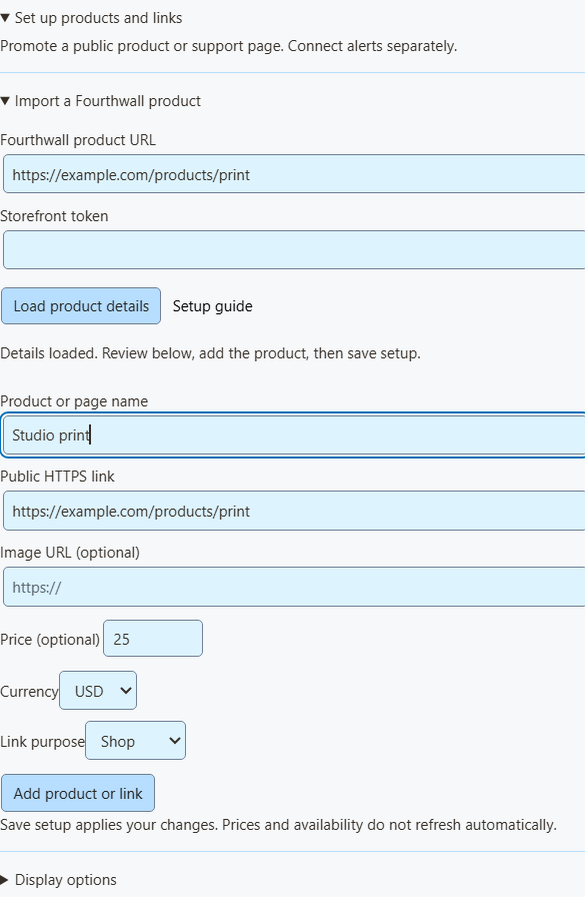
การนำเข้าทำอะไรบ้าง
- โหลดสินค้าสาธารณะที่พร้อมขายครั้งละหนึ่งชิ้น
- โทเคนระบุร้านที่จะค้นหา ใช้ครั้งเดียวแล้วล้างออก ไม่บันทึกหรือส่งไปยังโอเวอร์เลย์
- หากตัวเลือกสินค้าหรือชุดสินค้ามีราคาต่างกัน ช่องราคาจะเว้นว่าง
- ข้อมูลเป็นภาพ ณ เวลานำเข้า ราคา สต็อก และรูปภาพไม่อัปเดตเอง ให้นำเข้าใหม่หรือแก้ไขเมื่อเปลี่ยนแปลง
- บันทึกสินค้าได้สูงสุด 20 ชิ้น การเพิ่มสินค้าเดิมซ้ำจะสร้างสำเนาอีกชิ้น
แสดงสินค้าและรหัส QR บนสตรีม
คุณเพิ่มลิงก์สาธารณะด้วยตนเองได้ เช่น Shopify, Tiltify หรือ Patreon แต่จะไม่เชื่อมต่อการแจ้งเตือนชำระเงิน
- ใน โอเวอร์เลย์ OBS สำหรับ เลือก สินค้าและลิงก์สนับสนุน.
- เปิด ตัวเลือกลิงก์โอเวอร์เลย์ แล้วเลือก มุมมองโอเวอร์เลย์: แสดงสินค้าเท่านั้น การ์ดสนับสนุนเท่านั้น แจ้งเตือนกิจกรรมเท่านั้น หรือแสดงสินค้าและแจ้งเตือน
- คลิก คัดลอกลิงก์ OBS แล้วเพิ่มใน OBS เป็น แหล่งเบราว์เซอร์ (Browser Source)เริ่มที่ 800 × 600 ใช้หนึ่งแหล่งต่อหนึ่งมุมมอง
- ใน ตัวเลือกแสดงผลปักหมุดสินค้าชิ้นแรกหรือหมุนเวียนสินค้า แล้วเปิด แสดง QR code.
- สแกนรหัส QR ด้วยโทรศัพท์จากเลย์เอาต์ OBS สุดท้ายของคุณ
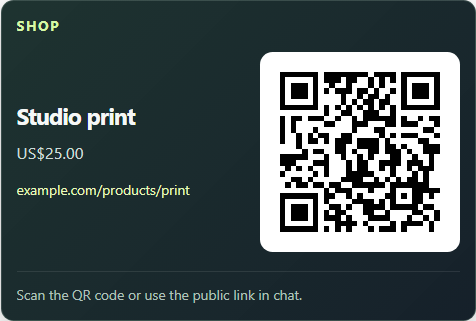
การแจ้งเตือน การแจ้งเตือนหลายรายการ และ Event Flow
- หน้าต่างแสดงสินค้ามีรูปสินค้า แต่การ์ดสนับสนุนขนาดเล็กไม่มี
- การแจ้งเตือนกิจกรรมทำงานได้เอง และไม่แสดงรหัส QR ของสินค้าที่ไม่เกี่ยวข้อง
- Multi-alerts and the activity feed work with the same session, with no product list needed. The Monetization activity view needs the product list turned on for other providers; Patreon pledge alerts display independently.
- ใน Event Flow ทริกเกอร์การบริจาคยังครอบคลุมแถวที่มี
hasDonationใช้ประเภทกิจกรรมสำหรับการซื้อหรือของขวัญที่เสร็จสมบูรณ์ ดู การจับคู่อีเวนต์.
สลับสินค้าแบบสดหรือแชร์ลิงก์ผู้ชมเดียว ดู การควบคุมสินค้าแบบสด.
หากไม่มีอะไรปรากฏ
| ปัญหา | ลองวิธีนี้ |
|---|---|
| ปิดตัวรับอยู่ | For Patreon, turn on Enable Patreon alerts แล้วคลิก บันทึกการตั้งค่า. For Fourthwall, Ko-fi and Buy Me a Coffee, turn on การควบคุมส่วนขยายจากระยะไกลผ่าน API. |
| ไม่ได้เชื่อมต่อ | เปิด SSN ไว้และตรวจสอบอินเทอร์เน็ต นี่คือการเชื่อมต่อของ SSN ไม่ใช่ของผู้ให้บริการ |
| ไม่ได้รับกิจกรรม | ตรวจสอบผู้ให้บริการที่เลือก URL และการตั้งค่า webhook ของผู้ให้บริการ |
| ข้ามกิจกรรมแล้ว | ไม่รวมการทดสอบ การชำระเงินส่วนตัว กิจกรรมที่ไม่รองรับ และยอดไม่ถูกต้อง |
| ได้รับกิจกรรมแล้ว แต่ไม่มีโอเวอร์เลย์ | ตรวจสอบเซสชัน รหัสผ่าน ตัวกรอง กฎ SSN และการมองเห็นแหล่งใน OBS การซื้อส่วนใหญ่ไม่ใช่การบริจาค |
| การแจ้งเตือนแสดงซ้ำ | อย่าส่งการชำระเงินเดียวกันผ่านทั้งผู้ให้บริการและบริการอื่น |
| นำเข้าไม่สำเร็จ | ตรวจสอบลิงก์สินค้าและโทเคน Storefront รวมถึงว่าสินค้าเป็นสาธารณะและพร้อมขาย คุณกรอกเองได้เสมอ |
This is a live alert feed, not an order record. Use your provider's dashboard for payments, refunds, and shipping. Tiltify alerts aren't supported yet.